
Razer Huntsman V2 TKL stops being detected by the computer for a few seconds randomly even when Idle | Razer Insider
Skip to main content

Razer Huntsman V2 TKL stops being detected by the computer for a few seconds randomly even when Idle

  • January 12, 2024
  • 1 reply
  • 247 views

ka11zer

The Razer Huntsman V2 TKL keyboard stops being detected by the computer for a few seconds randomly even when it is idle. This issue occurs even when the keyboard is connected directly to the computer’s USB port and not to a USB hub. The issue has been observed multiple times and is reproducible.

Steps to Reproduce:

  1. Connect the Razer Huntsman V2 TKL keyboard to the computer’s USB port.
  2. Use the keyboard normally.
  3. Observe that the keyboard stops being detected by the computer for a few seconds randomly even when it is idle.

Expected Result: The Razer Huntsman V2 TKL keyboard should be detected by the computer at all times.

Actual Result: The Razer Huntsman V2 TKL keyboard stops being detected by the computer for a few seconds randomly even when it is idle.

Completely Closed Razer Synapse 4 and all background processes and keyboard works perfectly fine

1 Reply

SamukaPalhinhas

Hello there, lets try some quick fixes, first of all, delete razer synapse and all modules from the control pannel.

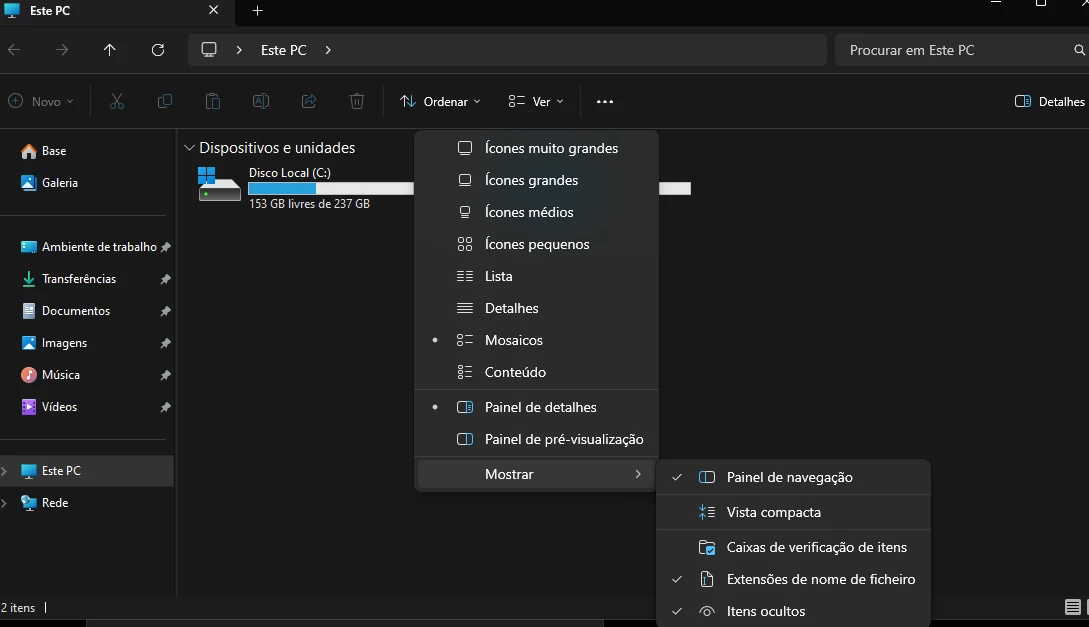
in my case I only have synapse itself and not lighting addons, after you delete that, press win key and r key at the same time and type “%LocalAppData%” without the “”. delete the razer folder if it exists. head back to c: and turn on see hidden files. like shown in the picture

its in portuguese but it should be easy to reproduce.

after this is done go to c: and you now will see a folder called “ProgamData” open that folder and delete razer folder if it exists. do the same for “Programs” and “Programs x86” folders as well, delete the razer folder.

After this is done go to windows key and r and type “%temp%” without the “”. delete all files present there, dont worry, they are just temporary files and do not affect the work of the pc.

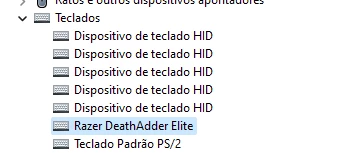
After this is done go ahead to device manager, use the windows search to find it, once that opens, find the keyboards tab and expand it

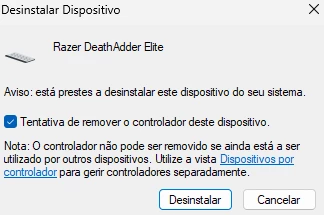
find your keyboard or mouse and right click it, select unistall device, and check the option to delete the driver as well

after that is done, go ahead and reboot your pc.

Reinstall synapse again and it should work without problems.

Let me know if it helped :)