How to Install Synapse without Internet | Razer Insider
Skip to main content

How to Install Synapse without Internet

  • November 30, 2022
  • 5 replies
  • 6505 views

Hello, I'm trying to use my Cynosa Chroma keyboard on a Windows 10 computer that basically has no internet. (Technically it has internet but the crazy firewall, which I have no control over, blocks everything). So the Synapse 3 installation wizard cannot connect to the server and fails. I have permissions to install software but I need to copy the installation files over manually and then run them and this installation must not use the internet. How can I go about this? I already installed Synapse 3 on my main computer with Windows 11 and internet access and everything works fine. Just want to use it on my secondary computer. I don't even need all the modules/functionality. Just the basic set of quick effects to toggle between... no visualizer or game support etc required. Any way?


5 Replies

FiszPL
Vanguard
Forum|alt.badge.img+1
  • VANGUARD
  • December 1, 2022
Not possible in easy way... There's no offline installer unfortunately. But, there might be some workaround... It'll require other PC that have full access to the internet, then download and install Synapse on this PC. Then go to: C:\\Windows\\Installer\\Razer\\Installer\\ and copy all installer files to another PC (if you don't see this folder, be sure that you'll unhide system fiiles, and hidden folders).

  • Author
  • December 1, 2022
I already installed Synapse 3 on my primary computer as I mentioned, and I'm showing hidden files and folders, but that particular folder path does not exist. There is no "Installer" folder in C:/Windows. Thanks though.

FiszPL
Vanguard
Forum|alt.badge.img+1
  • VANGUARD
  • December 1, 2022
warcryme
I already installed Synapse 3 on my primary computer as I mentioned, and I'm showing hidden files and folders, but that particular folder path does not exist. There is no "Installer" folder in C:/Windows. Thanks though.
You must enable showing hidden (protected) system files in windows explorer to see this: https://www.techbout.com/hidden-system-files-windows-10-51145/

  • Author
  • December 2, 2022
Got it, thanks. I followed the instructions and got so close! I managed to successfully install Razer Central and Razer Synapse 3. Razer Central appears in my system tray just fine. When I run Razer Synapse 3, I run into an unfortunate wall. It gives me the screen "Do you want to allow this app to make changes to your device?" requiring administrator privileges. Unfortunately I don't have those, so I can't continue. It is unfortunate that this software is so invasive and requires so much control over my system when all I want it to do is light up a keyboard.... I was hoping there was some method to run a smaller sub-program that just gives me minimal control over the lighting. Maybe not though...

Team! If you are in this same boat, I was able to get it to finally work. (I work in Cyber Security, and this was for my work machine, which is heavily locked down and even I don’t have admin rights to)


Scenario: You don’t have admin rights to your machine, but you can do the initial install right up to where it downloads.  Or, you have the ability to have an admin install it on your machine, but when you log in as a non-admin user, it freezes on the download.  (For those at work, open up a help desk ticket and most likely they will install it because tons of us security folk have razer keyboards.)

Solution: (assuming windows)

  1. On a machine you own, install razer like normal.  Set up your keyboard in Chroma and then export the chroma config file.
     
  2. On that same machine, navigate to c:\users\PROFILENAME\appdata\local\Razer
    **If you do not see AppData, you need to unhide system folders
     
  3. ZIP up the “RazerAppEngine” folder.  Make sure to Zip it up, especially if you need to use something like OneDrive to get the files from system A to system B.  Zipping it also makes sure nothing is missed.
     
  4. Get the Zip file over to the other system. And go to the SAME location c:\users\PROFILENAME\appdata\local\Razer
     
  5. In your SysTray, EXIT out of all Razer apps. **IMPORTANT**
     
  6. Unzip the RazerAppEngine folder into the Razer folder: “c:\users\PROFILENAME\appdata\local\Razer\RazerAppEngine”
     
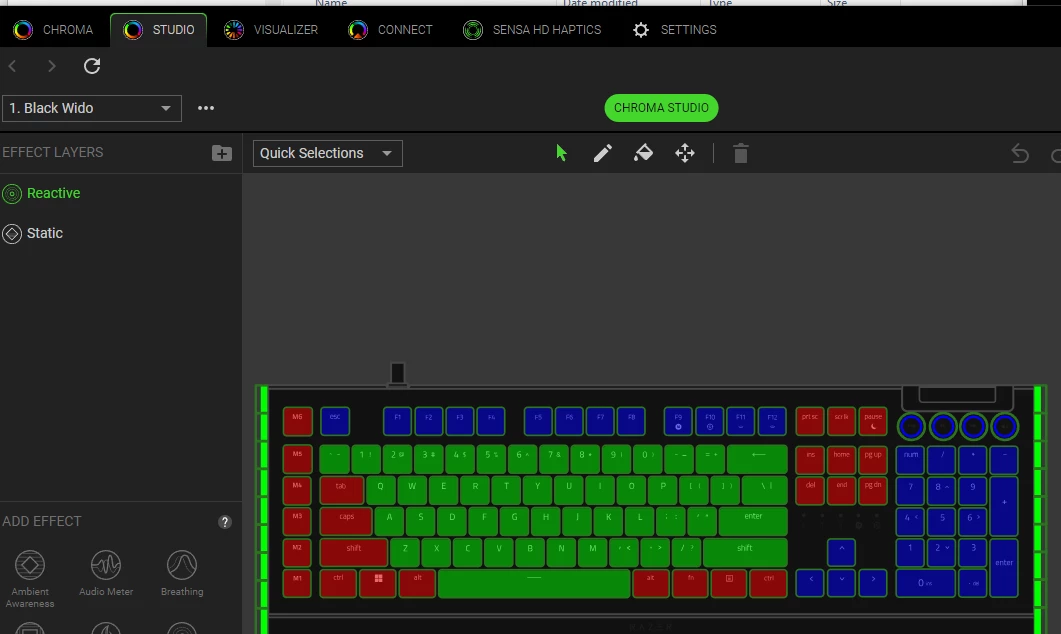
  7. Launch Chroma.  It will tell you it cannot download. THAT IS OKAY.  Just press “retry” and it will load up studio.  From there, delete any profiles you have, and then import the chroma config file from System A.
     
  8. Your keyboard will now work.
     
  9. If you exit out of Chroma apps and reload it, it will no longer prompt you to download.

Enjoy!  

(On my work machine after I followed my instructions)