Razer Blade 16 - Cannot update BIOS due to BitLocker being enabled (Windows 10 doesn't have BitLocker) | Razer Insider
Skip to main content
Question

Razer Blade 16 - Cannot update BIOS due to BitLocker being enabled (Windows 10 doesn't have BitLocker)

  • October 3, 2026
  • 2 replies
  • 27 views

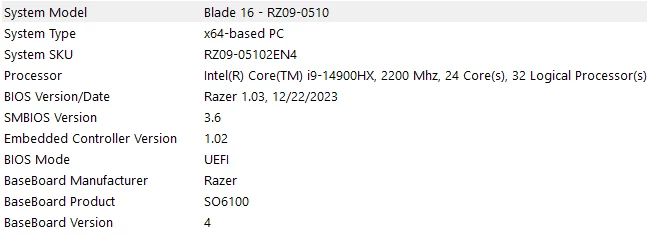
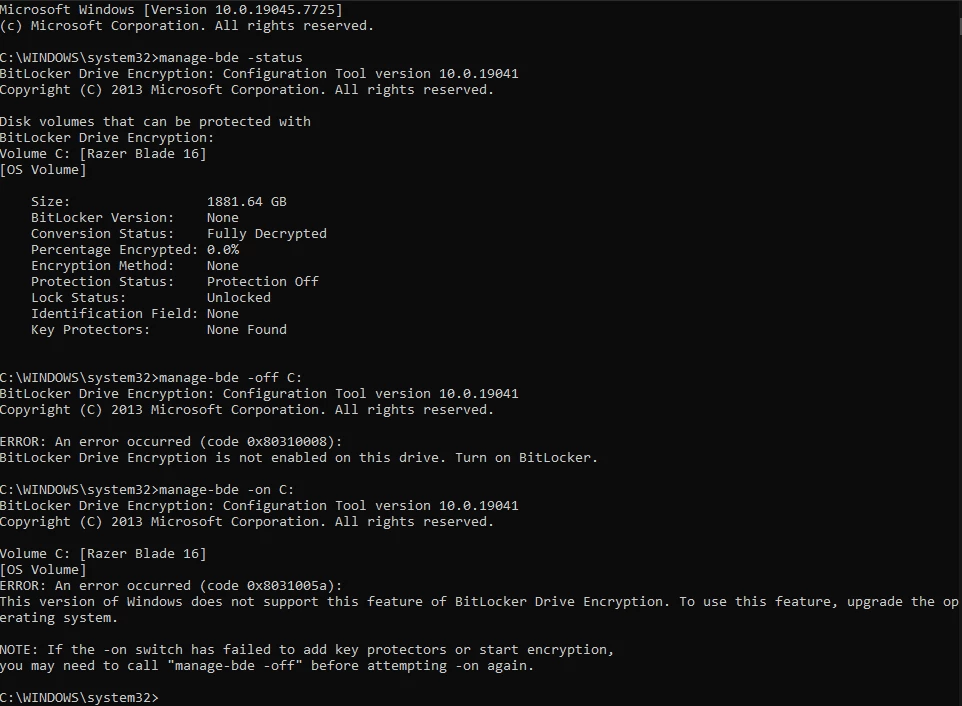
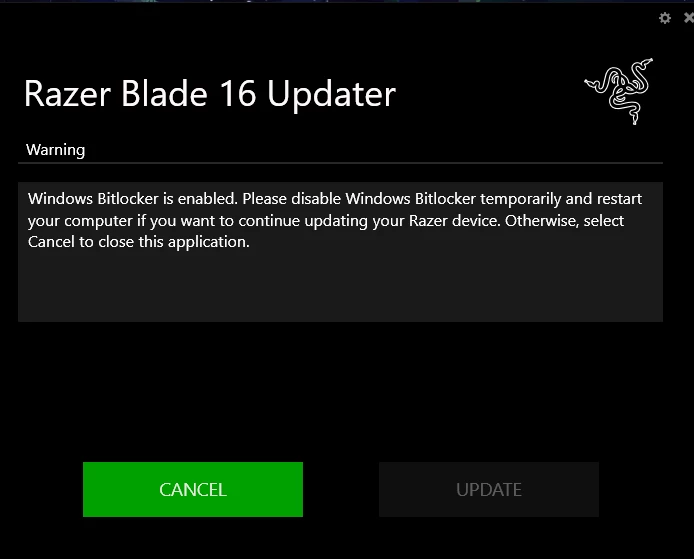
As the title says, I have a Razer Blade 16” running Windows 10, fully up to date when it comes to the windows updates. It came to my attention that the Intel i9 needed a revision update and in order to update it I need to update my BIOS firmware since that revision is apparently included in the BIOS update. I followed all the steps and when it came to disabling BitLocker, the most I could do was run a CMD Prompt command to disable it, but upon further investigation I realized BitLocker doesn’t even exist in the current Windows 10 update. So I’m just here looking for a solution, how can I update my BIOS?


2 Replies

  • Author
  • Insider Mini
  • October 3, 2026

I apologize, I managed to figure it out in a last ditch effort. I peaked in the Services app (Win+R = “Services.MSC”) and noticed that there was a BitLocker setting, disabled that and restarted, then the updater was able to Run.


But now all it does is restart the computer and doesn’t update anything. After the computer boots back to windows i restart again (after waiting 5 minutes to make sure the updater isn’t still doing something) in order open the BIOS menu. It still says the BIOS version is 1.03. What’s going on?


  • Author
  • Insider Mini
  • October 5, 2026

Finally figured it out and can’t believe Razer doesn’t address these types of issues in any way, shape, or form. I’ll post the solution that worked for me here:

Step 1: Download the BIOS updater from Razer. 

Step 2: Extract the files from the BIOS updater .exe with 7-Zip (right-click → Show more options → Extract files → Choose your folder → OK). 

Step 3: Disable the antivirus. 

Step 4: Restart the computer and open the BIOS. 

Step 5: Disable the "Fast Boot" option and the "Secure Boot" option. 

Step 6: Save and exit the BIOS.

 Step 7: Disable core isolation in "Windows Security." 

Step 8: Run the "flashWin.bat" file as administrator. 

Step 9: Wait for the BIOS update to complete. The computer will restart one or more times. Above all, don't touch anything until Windows has fully restarted. 

Step 10: Re-enable all security features (the BIOS one should re-enable itself automatically, but check anyway).