"Razer Kraken V4 - Game" Sound Device Issues | Razer Insider
Skip to main content
Question

"Razer Kraken V4 - Game" Sound Device Issues

  • December 21, 2024
  • 9 replies
  • 2302 views

Hello,

I recently purchased a Razer Kraken V4.  After setting it up, there are two new sound devices in Windows.  One sound device is “Razer Kraken V4 - Chat”, the other is “Razer Kraken V4 - Game” (There are two additional sound devices when the headset is plugged in.

Yesterday, using the headset in wireless mode, the “Razer Kraken V4 - Game” sound device was working fine.  Today, however, that sound device produces no sound.  The “Razer Kraken V4 - Chat” sound device works fine.  Additionally, when the headset is plugged in, all four of the “Razer Kraken V4” sound devices work fine.

Does anyone know how to get the “Razer Kraken V4 - Game” sound device to produce sound?  Is there something that I’m doing wrong or a setting somewhere that I’m missing?  I’ve scoured through the Razer Synapse software and don’t see anything that could re-enable the sound.

Thanks in advance!

9 Replies

Zino_VLA
  • Insider Mini
  • January 7, 2025

I have kind of the same problem. My Razer Kraken V4 arrived today and is as new as it gets. I’m able to get sound  from my iPhone via BT, but I get no sound whatsoever from my desktop. Nor a wireless connection, nor connected via USB. Selecting the chat and game device doesn’t make any difference.

Did you get of find a solution?


Zino_VLA
  • Insider Mini
  • January 7, 2025

I found a solution for my problem.
 

  1. I uninstalled all devices through the Windows device manager.
  2. Next I uninstalled all Razer software.
  3. Yep … time for a reboot. 
    Be sure your headset is turned on!
  4. At reboot Windows 11 recogneized my Kraken V4.
  5. Next I downloaded Synapse 4 here.
  6. You guessed it: install Synapse 4.
  7. Give Synapse some moments to finish the install.
  8. If not asked for it reboot your computer.
  9. After the reboot start Synapse 4 (or start it up) and give Synapse 4 enough time to detect and install all your Razer devices.
  10. I rebooted ones more, but I don’t think it is necessary to be honest. Then again … a little reboot never hurt anybody! ;-)

This solved it for me. Hope it helpes somebody out there.


Zino_VLA
  • Insider Mini
  • January 8, 2025

I found a solution for my problem.
 

  1. I uninstalled all devices through the Windows device manager.
  2. Next I uninstalled all Razer software.
  3. Yep … time for a reboot. 
    Be sure your headset is turned on!
  4. At reboot Windows 11 recogneized my Kraken V4.
  5. Next I downloaded Synapse 4 here.
  6. You guessed it: install Synapse 4.
  7. Give Synapse some moments to finish the install.
  8. If not asked for it reboot your computer.
  9. After the reboot start Synapse 4 (or start it up) and give Synapse 4 enough time to detect and install all your Razer devices.
  10. I rebooted ones more, but I don’t think it is necessary to be honest. Then again … a little reboot never hurt anybody! ;-)

This solved it for me. Hope it helpes somebody out there.


In addition to all of the above you might also try to update de firmware first. You can find it here.

Hope it will help somebody.


XxOverseerxX
  • Insider Mini
  • January 15, 2025

Hey there! 

I’m running into a similar issue here where there’s lots of cut out. it was similarly outlined in another article and got taken to DMs. Not sure if it got a resolution. link: https://insider.razer.com/razer-support-45/raiser-kraken-v4-the-sound-disappears-the-problem-is-in-the-firmware-68801?postid=233362#post233362

I used your steps outlined above and I’m still having this issue where the headset will cut out the game audio, but I can see that the device is still receiving sound from the PC when I look into the sound devices. Chat channel is fine, just the gaming channel.

I ran into this issue with a headset back in December and support stated that the device was defective and I received a replacement with the exact same issue. 


DAYI95
  • Insider Mini
  • May 8, 2025

Same issue and I already tried all solutions


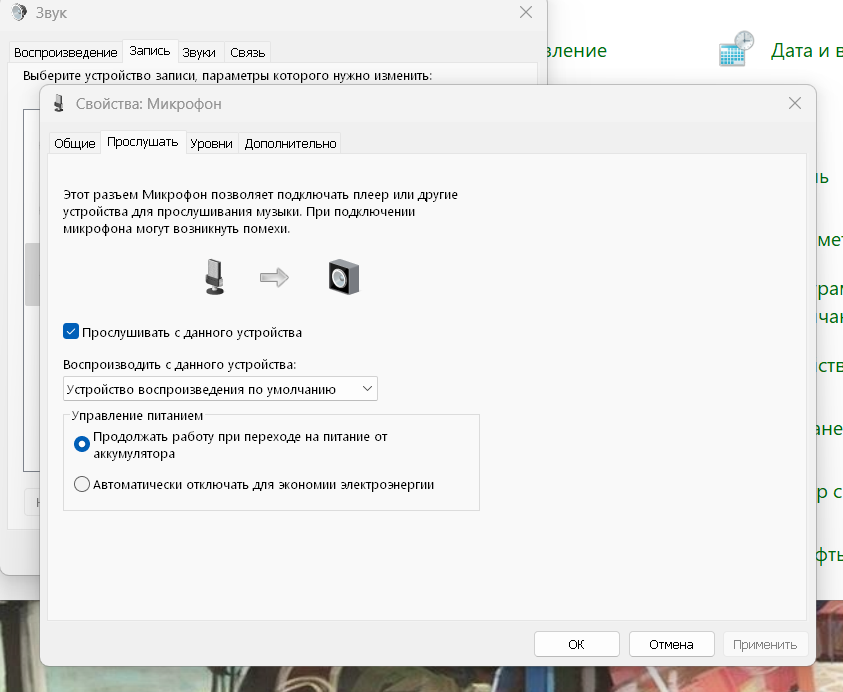
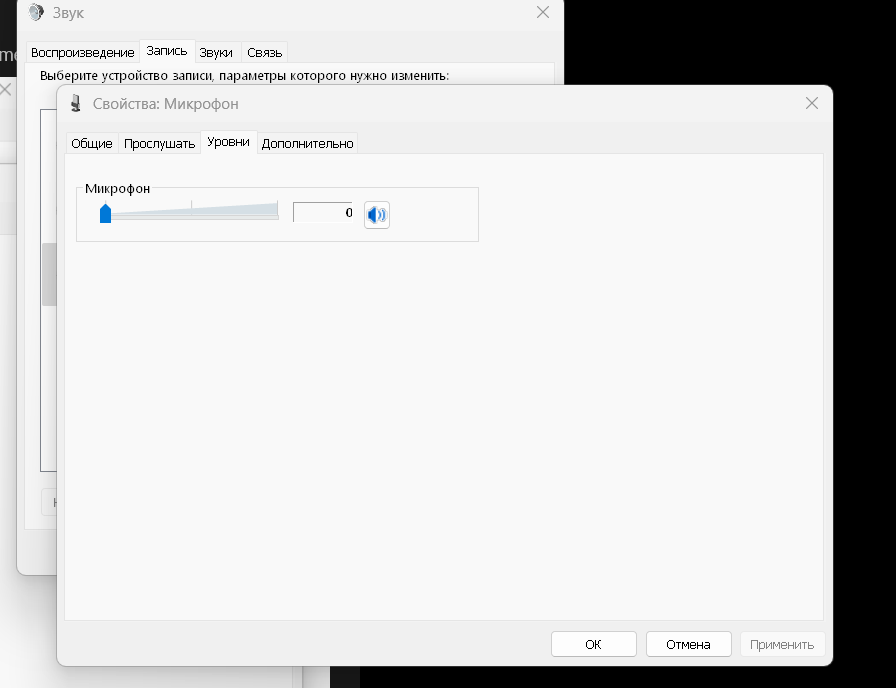
In the sound settings, enable microphone listening, but turn the volume down to minimum. It helped me.


In the sound settings, enable microphone listening, but turn the volume down to minimum. It helped me.


DAYI95
  • Insider Mini
  • July 3, 2025

In the sound settings, enable microphone listening, but turn the volume down to minimum. It helped me.


Omg its works. Such a weird reason to break sound mix . In the end it means somekind software bug or something


  • Insider Mini
  • November 7, 2025

TO EVERYONE WHO KEEPS HAVING ISSUES WITH AUDIO NOT PUTTING OUT:

Please check the audio in different USB ports before completely doing everything, since it could just not be compatible or something like that. I literally reinstalled windows before realizing that could be the issue and it was. Thank me later if this is the reason, since I don't want others to go as far as I did.

Otherwise, just try what other people say here or somewhere else, thanks!