

Hi there, I’m not sure if this is just how the product works or will be upcoming bug fix, but I’ll just list down what I’ve encountered so far:
FYI these are my software versions that I’ve encountered the issue:
- (Windows 11) Desktop Synapse v4.0.86.2604140749
- Synapse Web v2604130812
=== Physical Dongle Lights doesn’t sync when Synapse Desktop software is not open ===
Now let’s start with Synapse Desktop first.
First I set the dongle lights to show DPI - Battery Level - Polling Rate in my Synapse Desktop.
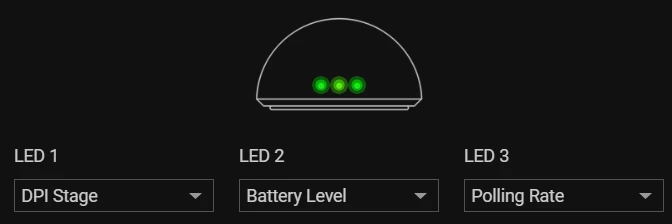
While Synapse software is open, pressing the DPI button underneath my mouse will change DPI and the real physical dongle on my desk reflects the correct color, which is 400 dpi red color (GOOD).
But after I quit Synapse Desktop software, changing DPI doesn’t change the physical dongle’s DPI light, it stays the same color as previous (BAD).
=== Physical Dongle Lights doesn’t sync when Synapse web is OPEN and CLOSED ===
Now after I applied the settings to show DPI - Battery Level - Polling Rate from Synapse web, I did the same test.
When synapse web is open, and I ensured desktop synapse was totally quit:
I press the DPI button underneath my mouse again to change DPI, synapse web shows the correct DPI, 400 dpi which is red here (GOOD), however the physical dongle lights are still the same 3 green lights (BAD).
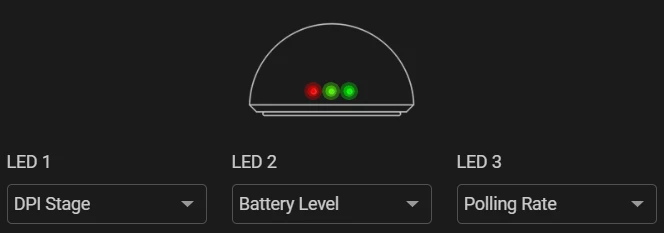
As you can see my Synapse web already shows RED - GREEN - GREEN but my physical dongle is still GREEN - GREEN - GREEN.
Naturally, closing synapse web also wouldn’t sync the dongle lights when I switch DPI.
=== Conclusion ===
Right now the only way to make sure the real-life dongle lights show the correct color/values for DPI (I have not tested for polling rate and other values yet) is to keep Desktop Synapse software open in the background. I don’t think this is a good idea and I hope there’s an upcoming fix for this.
What I expect was to open Synapse web/Desktop Synapse, set the stuffs once and quit them. And the physical dongle can still show changes properly when I switch DPI without Synapse.