Well I've bought kraken v3 pro a few months ago and I need eq settings that are good for everyday use. Listening to music (classical and pop), chatting on discord, gaming, etc.
I have tried to find something that would work out for me but my attempt was unsuccessful. I would also like some tips for mic settings on the headset. Thanks in advance.
Best answer by Ma4re
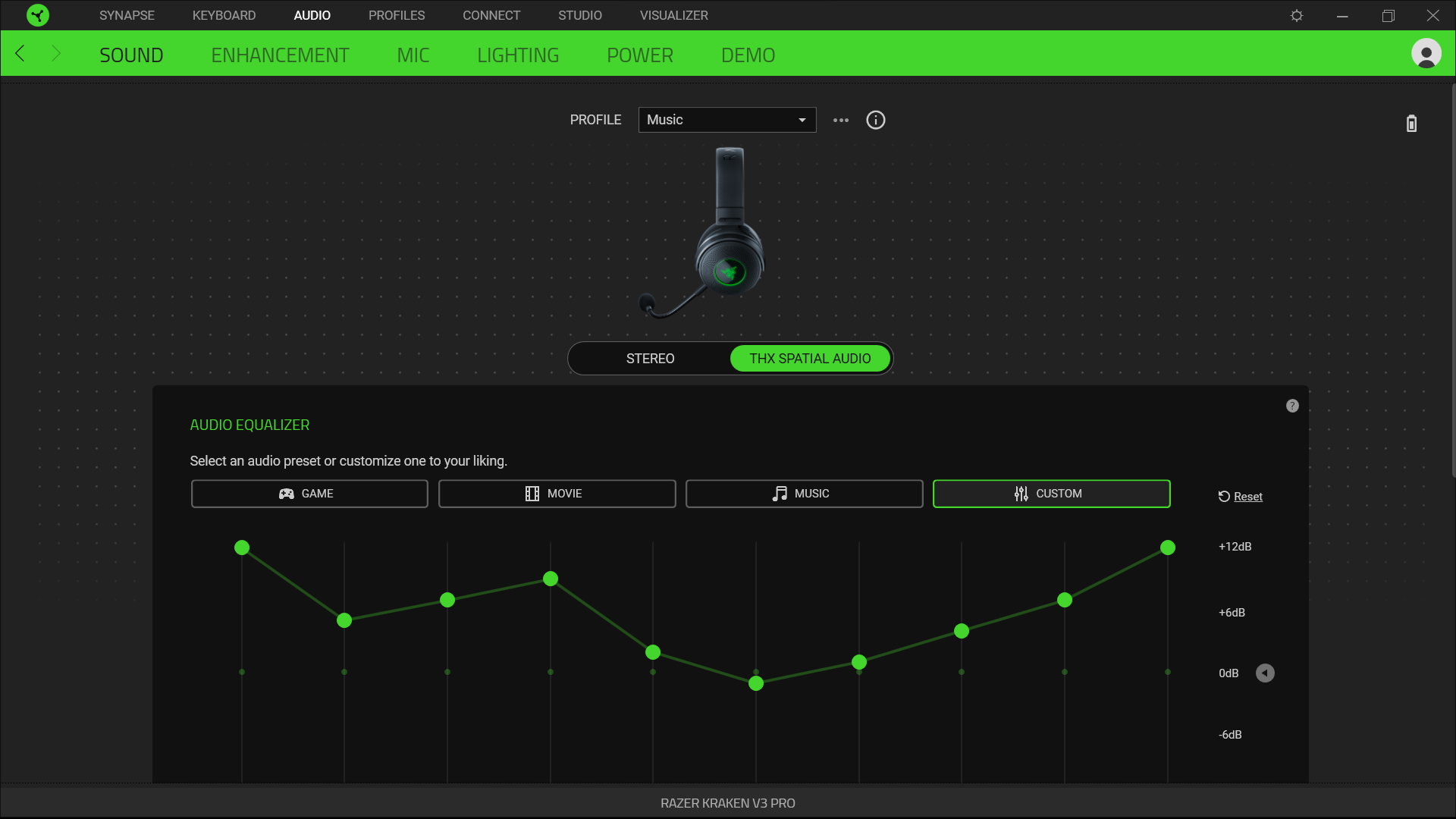
I use this configuration for music, it's the best sound quality I've gotten, the bass feels great and the vibration is not annoying. To get the best sound quality to enjoy your music to the fullest, the volume dial on your headphones should be set to maximum and the volume on your music player (e.g. Youtube Music or Spotify) should be set to the minimum possible. The volume of windows can be varied as usual. With these settings, the sound quality for music is outstanding.
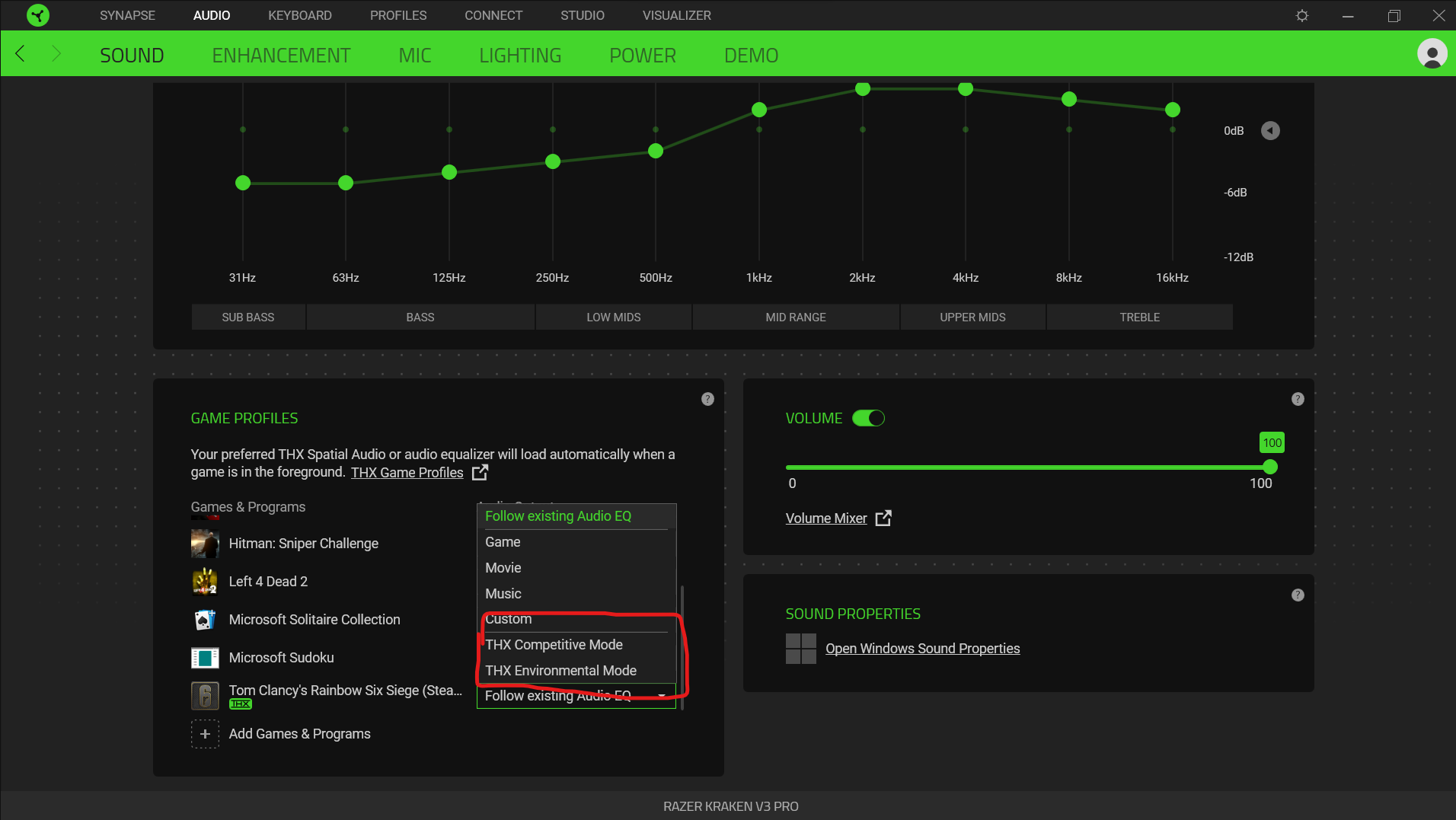
THX Spatial Audio
31Hz = +12
63Hz = +5
125Hz = +7
250Hz = +9
500Hz = +2
1kHz = -1
2 kHz = +1
4kHz = +4
8kHz = +7
16kHz = +12
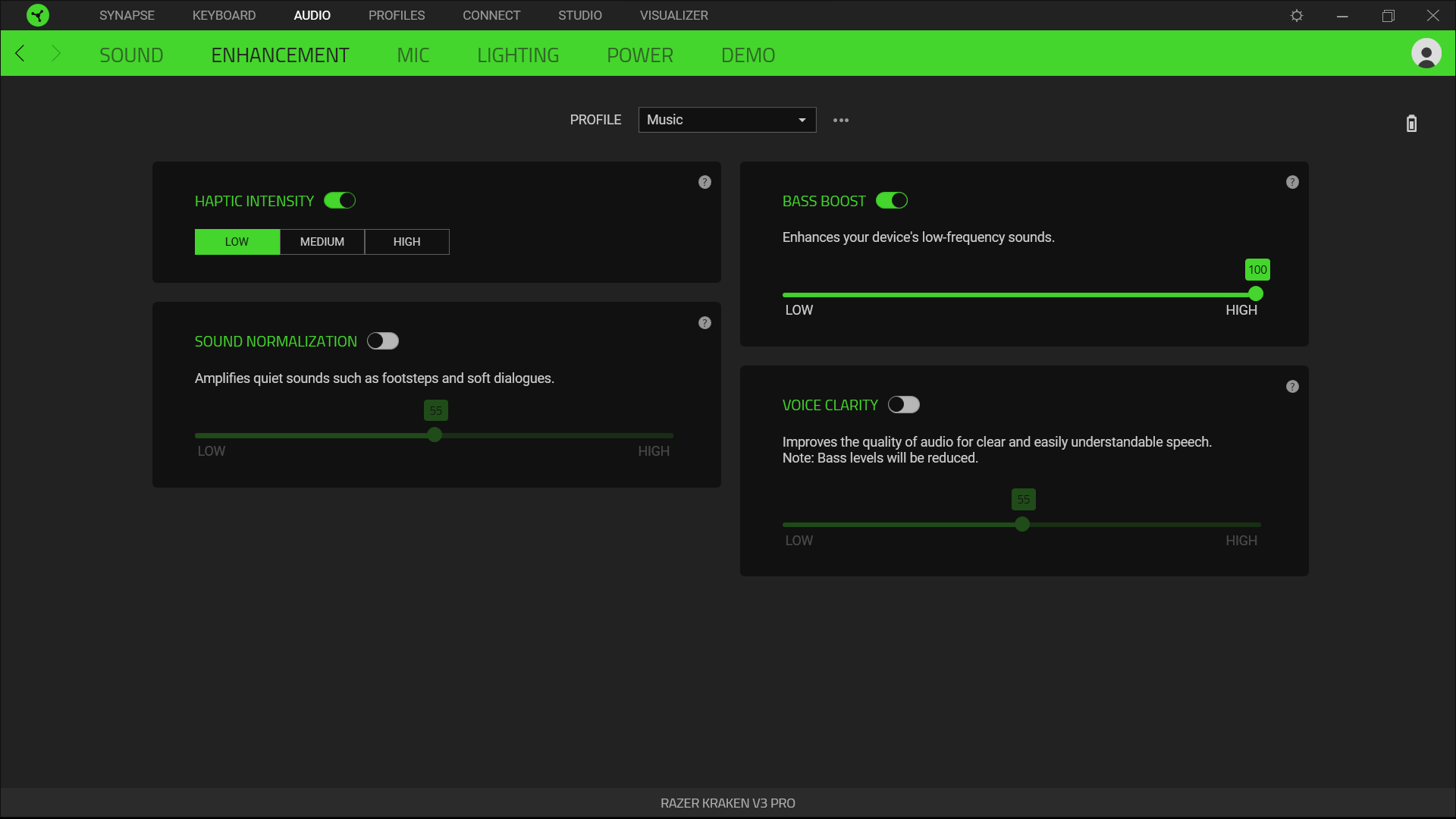
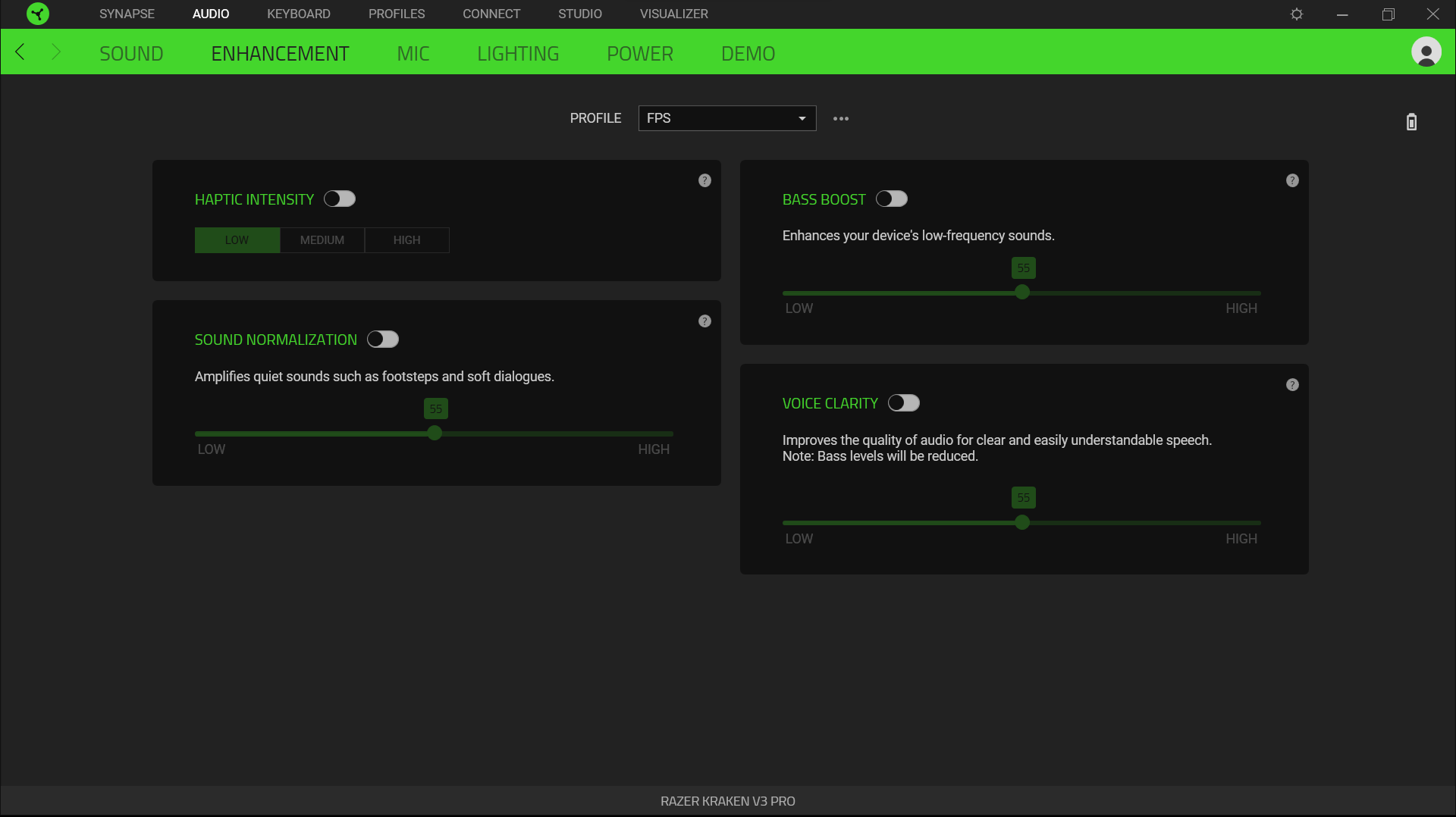
Hapatic Intensity: LOW (depending on the song you can use it in MID)
Bass Boot: ON 100
Sound Normalization: Off
Voice Clarity: Off
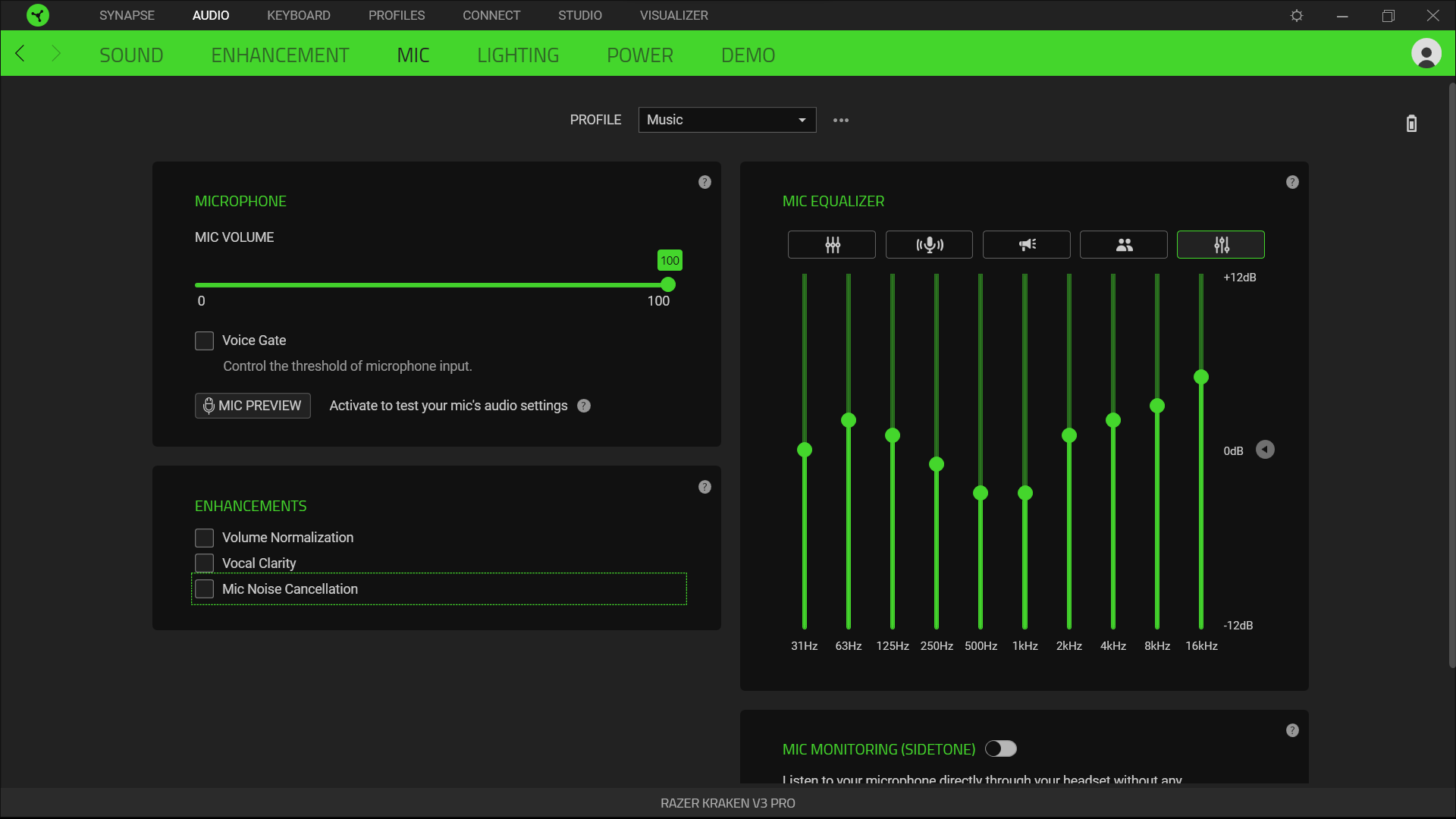
For me the quality of the microphone is not essential but doing some tests I got these settings that I like. You must keep in mind that these settings depend on your voice so you will have to try your own settings.
31Hz = 0
63Hz = +2
125Hz = +1
250Hz = -1
500Hz = +2
1kHz = +3
2 kHz = +1
4kHz = +2
8kHz = +3
16kHz = +5
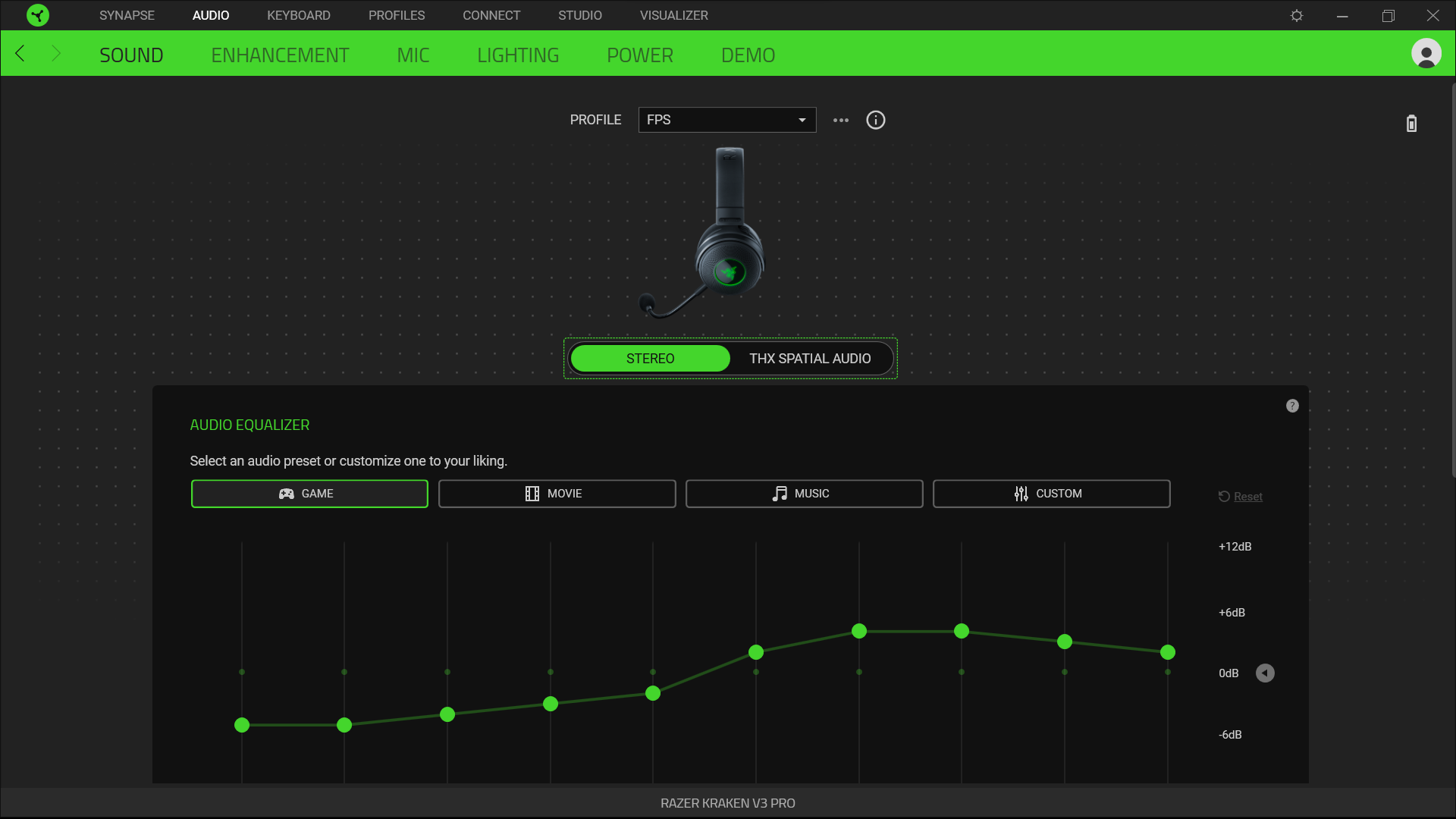
The above audio settings are not recommended for FPS games where you need to hear footsteps to know the position of the enemy. For those games I recommend you to create another profile and select STEREO and the default settings for games, works perfect for me. In some games you have the THX competitive mode option, I don't like it but you can try it.
I hope it helps, when you try the configuration could you please let me know what you think of it.
I use this configuration for music, it's the best sound quality I've gotten, the bass feels great and the vibration is not annoying. To get the best sound quality to enjoy your music to the fullest, the volume dial on your headphones should be set to maximum and the volume on your music player (e.g. Youtube Music or Spotify) should be set to the minimum possible. The volume of windows can be varied as usual. With these settings, the sound quality for music is outstanding.
THX Spatial Audio
31Hz = +12
63Hz = +5
125Hz = +7
250Hz = +9
500Hz = +2
1kHz = -1
2 kHz = +1
4kHz = +4
8kHz = +7
16kHz = +12
Hapatic Intensity: LOW (depending on the song you can use it in MID)
Bass Boot: ON 100
Sound Normalization: Off
Voice Clarity: Off
For me the quality of the microphone is not essential but doing some tests I got these settings that I like. You must keep in mind that these settings depend on your voice so you will have to try your own settings.
31Hz = 0
63Hz = +2
125Hz = +1
250Hz = -1
500Hz = +2
1kHz = +3
2 kHz = +1
4kHz = +2
8kHz = +3
16kHz = +5
The above audio settings are not recommended for FPS games where you need to hear footsteps to know the position of the enemy. For those games I recommend you to create another profile and select STEREO and the default settings for games, works perfect for me. In some games you have the THX competitive mode option, I don't like it but you can try it.
I hope it helps, when you try the configuration could you please let me know what you think of it.
Woah, thank you very much. I appreciate the detailed guide and the configurations work great. This really helped me out and I finally feel like I'm using the headset to it's fullest.
Well I've bought kraken v3 pro a few months ago and I need eq settings that are good for everyday use. Listening to music (classical and pop), chatting on discord, gaming, etc.
I have tried to find something that would work out for me but my attempt was unsuccessful. I would also like some tips for mic settings on the headset. Thanks in advance.
Am i wrong or has everything changed from settings to the mic, i can not change anything and need to take a mic option that’s already there. please i need help as my mic sounds like f dogshit.
Am i wrong or has everything changed from settings to the mic, i can not change anything and need to take a mic option that’s already there. please i need help as my mic sounds like f dogshit.
After 2 years, I finally discovered how to perfectly equalize the microphone and make it sound great!
If you feel like your Kraken V3 Pro mic sounds muffled, "boxy", or just like a cheap microphone, don't worry. The hardware is actually good, but the factory settings simply don't do it justice. The secret to getting a deep, clear, and professional sound lies in the Custom Mic EQ in Razer Synapse.
Here is a step-by-step guide on how to configure it, what each value does, and how to adapt it to your own voice.
Golden Rule Before Starting
In the microphone tab within Razer Synapse, you must turn off or reduce these options:
Voice Enhancement: Turn this OFF. If you leave it on, the software will fight against your manual EQ and make you sound robotic.
Background Noise Cancellation: Set it to the minimum or turn it off entirely if your room is relatively quiet. If it is too high, it will cut off the high frequencies of your voice, making it sound unnatural or choppy.
Step 1: Understanding What Each Band Does in Synapse
So you are not just moving sliders blindly, here is exactly what each frequency range does to your voice:
31 Hz - 63 Hz (Useless Noise): Your voice does not reach this low. These bands only pick up electrical hums, PC fans, or desk bumps. Recommendation: Lower them.
125 Hz (Body & Bass): This is where the depth of your voice lives. Boosting this band slightly gives you that "radio broadcaster effect". Recommendation: Boost slightly.
250 Hz - 500 Hz (The "Mud" or Boxy Sound):The main reason your mic sounds bad! Almost all headset mics build up too much energy here. Lowering these values removes that muffled, cardboard-box sound. Recommendation: Cut aggressively.
1 kHz - 2 kHz (Clarity): This dictates your diction. If your voice sounds distant or your words are hard to understand, boosting 2 kHz helps immensely. Recommendation: Leave flat or boost slightly.
4 kHz - 8 kHz (Presence & Sibilance): This gives "brightness" to your voice. But be careful: if you boost it too much, the "S" and "T" sounds will pierce your friends' ears. Recommendation: Adjust carefully according to your voice.
Step 2: The "Universal Preset" to Clean Your Voice
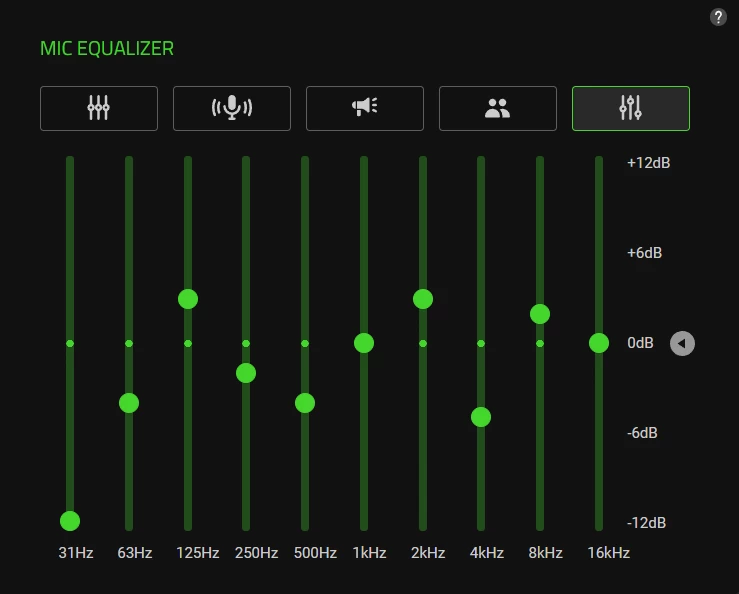
If you don't want to overcomplicate things and just want it to sound good right now, go to the Mic Equalizer section, select Custom, and input these values. It is an excellent starting point for almost any voice:
31 Hz: -12
63 Hz: -4
125 Hz: +3
250 Hz: -2
500 Hz: -4
1 kHz: 0
2 kHz: +3
4 kHz: -1
8 kHz: +2
16 kHz: 0
(Test this preset using the "Mic Preview" feature and notice the huge difference).
Step 3: How to Create Your Perfect EQ (Advanced Level)
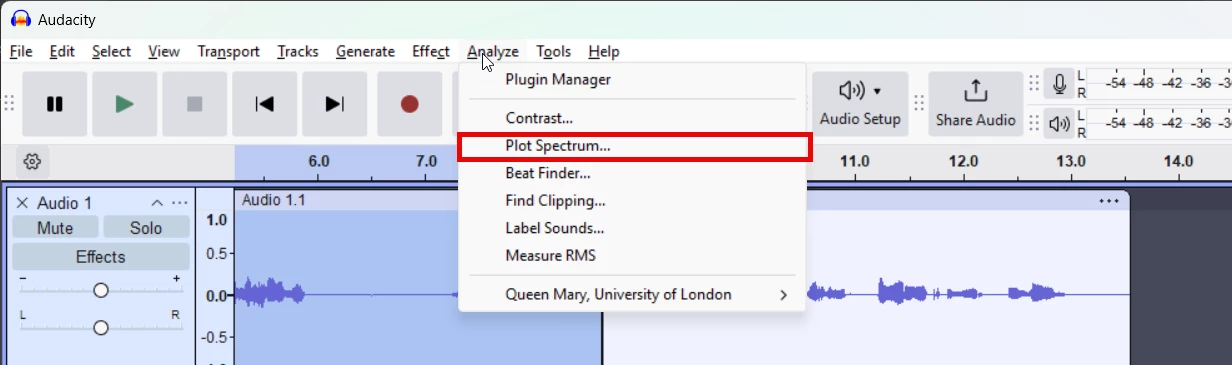
If you want to go a step further and create the perfect curve for your exact tone of voice, you can use a free program called Audacity. It is super easy:
1. Download and install Audacity.
2. Hit the red record button and speak naturally for about 10 seconds (read a text or talk about your day).
3. Select all the audio you just recorded and go to the top menu: Analyze > Plot Spectrum.
4. A graph will pop up showing the exact acoustic footprint of your mic.
How to read your graph to tweak Synapse:
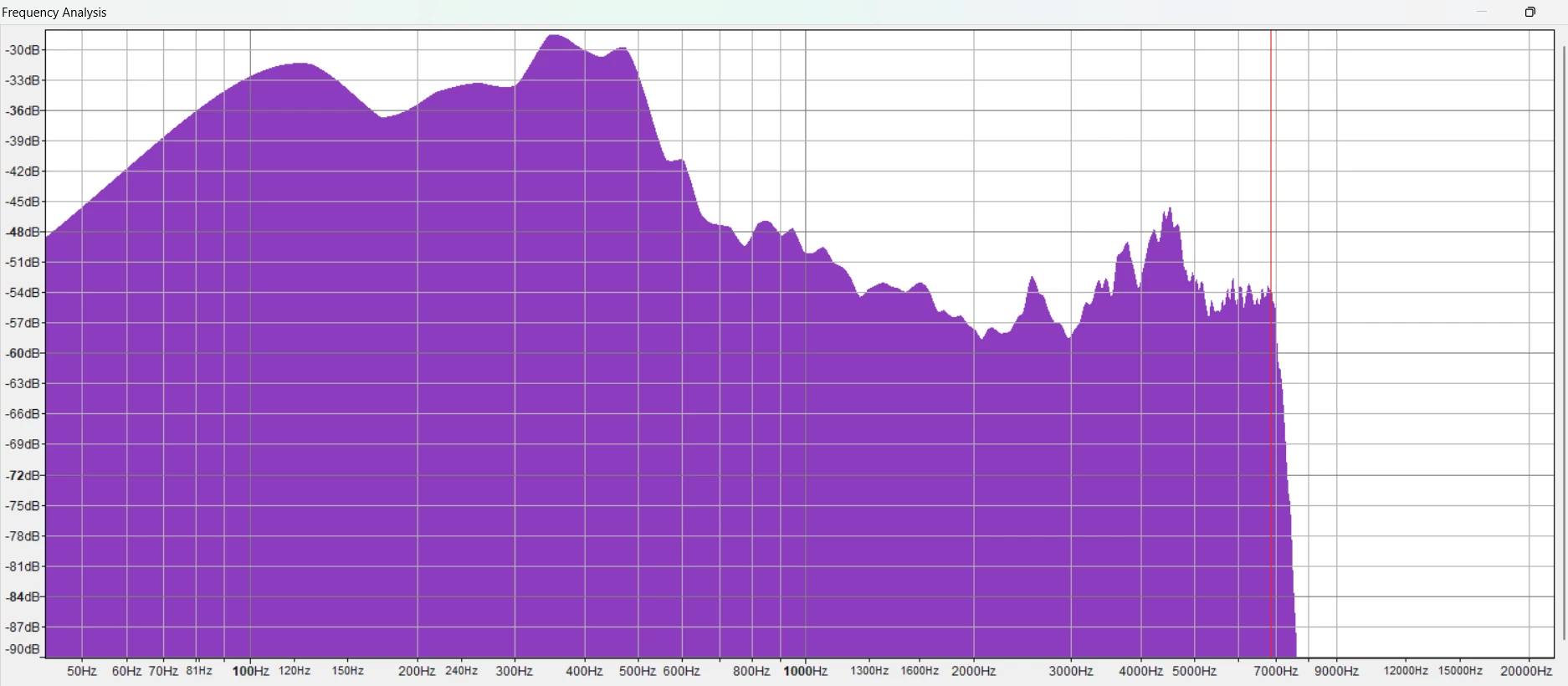
Analyzing my graph and fixing it in Synapse: When I looked at my graph, I noticed several issues that were making my mic sound cheap.
Audacity shows you every single frequency, but as you can see in the Razer Synapse Mic Equalizer tab, we only have 10 fixed sliders (from 31Hz to 16kHz) to fix our audio. Here is how I translated the visual data from my Audacity graph into those specific Synapse sliders to fix my voice:
31 Hz (-12dB): Human voices simply don't go this low. Leaving this up only captures desk thumps, keyboard vibrations, or moving the mic arm. I dropped it to the absolute minimum to keep the mic quiet.
63 Hz (-4dB): Similar to 31Hz, but this area catches PC fan noise, AC units, and electrical hums. Cutting it slightly cleans up the background noise since we are turning off the software noise cancellation.
125 Hz (+3dB): My graph showed a healthy curve here. This is where the "chest" sound and bass live. Boosting it slightly gave my voice that nice, deep radio broadcaster feel without making it sound artificial.
250 Hz (-3dB) & 500 Hz (-4dB): This was the biggest problem area. In Audacity, I had a massive mountain right in the middle. This frequency range is the "mud"—it's exactly what makes headset mics sound like you are talking inside a cardboard box. I aggressively lowered both sliders to flatten that mountain out.
1 kHz (0dB): I left this completely flat. My graph was pretty stable around this area, so there was no need to mess with it.
2 kHz (+3dB): I had a deep valley in my Audacity graph right here. This area is crucial for making words crisp and easy to understand. Because it was dipping, my diction wasn't clear. Boosting it brought the clarity back.
4 kHz (-4dB): I lowered this one quite a bit for a very specific reason. I tend to whistle a bit when I talk, and my "S" sounds can be very sharp (sibilance). Dropping this down to -4 completely smoothed out that piercing sound so it doesn't hurt anyone's ears.
8 kHz (+2dB): Because I turned off Razer's software noise cancellation (which was killing my high-end frequencies and making my voice cut out), I needed to bring some natural "air" and breathiness back to my voice. A small bump here did the trick.
16 kHz (0dB): Human voices barely have any energy up here. It's mostly just extreme high-end hiss. Leaving it at 0 is perfectly fine.
The Final Result: By reading the graph and counteracting the peaks and valleys, I ended up with these exact settings for my voice:
Play around with the values and trust your ears! Equalization isn't magic, it can't invent frequencies your voice doesn't produce, but it is the absolute best tool to clean up the garbage and highlight the best parts of your natural tone.