After today's Windows update my Tartarus pro's thumb joystick started to have major issues | Razer Insider
Skip to main content
Solved

After today's Windows update my Tartarus pro's thumb joystick started to have major issues

  • August 9, 2025
  • 47 replies
  • 2125 views

Show first post

47 Replies

I made a new profile, set up the 4-way controls and it worked… then it shifted back to the previous behavior.

Can we get some acknowledgement that Razer is aware of this and  working on a fix?


zeltwood
  • Insider Mini
  • August 10, 2025

I'm playing Star Trek Online, and the macros I assigned to those keys now won't work. I first tried doing the repair, which didn't work, so I tried reinstalling, and that didn't work either. The problem is definitely a software issue.

Same. Would be nice if we could roll back. I have issues ALL the time. 


zeltwood
  • Insider Mini
  • August 10, 2025

I made a new profile, set up the 4-way controls and it worked… then it shifted back to the previous behavior.

Can we get some acknowledgement that Razer is aware of this and  working on a fix?

RAZER emailed me back with this. They’re definitely aware, so we can hope so.  
 

“Dear valued customer,


I am Lily from Razer Support, and I’ll be assisting you today.


First and foremost, thank you for taking the time to report the issue you’ve encountered with your Razer Tartarus Pro related to D-Pad customization input. We sincerely apologize for the inconvenience this has caused — this is certainly not the experience we want our valued customers to go through. Please rest assured that we are committed to assisting you and working toward a solution.


In the meantime, we would like to recommend a temporary workaround that has resolved the issue for some users:


Workaround Steps:

1. Delete the current profile or create a new one in Synapse.

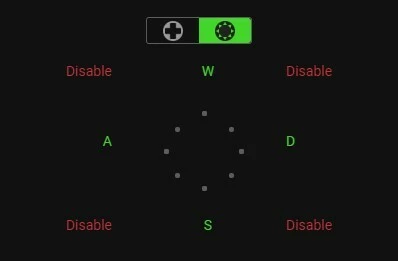
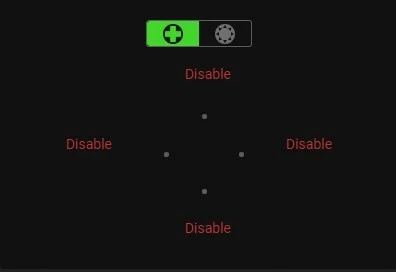
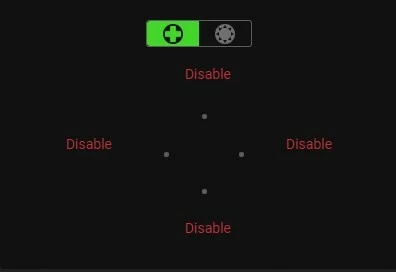
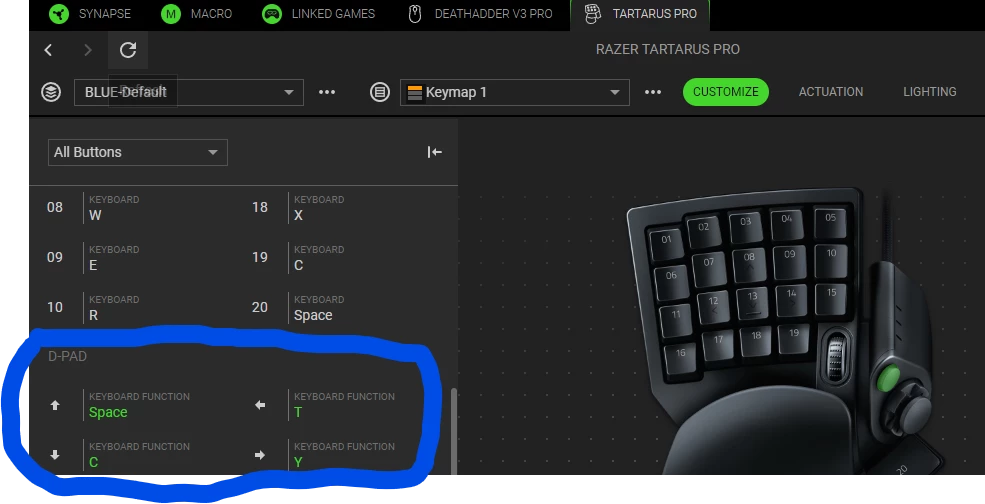
2. Change the D-Pad setting from “4 directions” to “8 directions.”

3. Set the keyboard function for Up, Down, Left, Right (8-way).

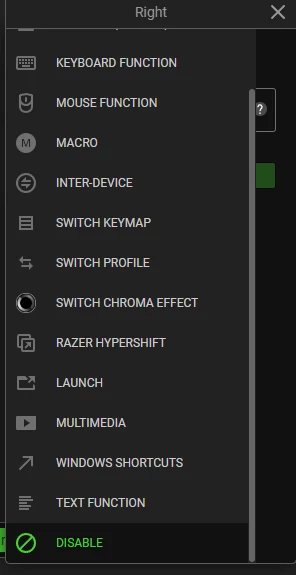
4. Disable the 4 corner inputs from the 8-way configuration.

5. Once done, you should be able to set keyboard functions for the remaining 19 keys and the scroll.


If the issue persists after applying the workaround, we kindly ask you to share the following so we can escalate the matter to our development team:


1. Video recording demonstrating the issue:

- Please include the customization process in Synapse and show the Tartarus Pro while reproducing the issue.

- If the video file is too large, feel free to upload it to cloud storage (e.g., Google Drive) and share the link (ensure it’s publicly viewable).


2. Razer Synapse 4 Logs: 

- Download the Razer Log Collector from: https://rzr.to/C2Qbo 

- Unzip and run the application 

- Click "Save To..." and choose your preferred location and filename


The logs will be saved as a single zip file.


Your cooperation is greatly appreciated. We’re here to support you every step of the way and will do our best to ensure this is resolved as soon as possible. Thank you again for your patience and for being part of the Razer community.
 
To update this case, you can reply to this email or use our Razer Support Portal.

 
Sincerely,

Lily”


  • Insider Mini
  • August 11, 2025

Hello Razer Support Team and Community,

I’m experiencing exactly the same issue with my Razer Tartarus Pro after the latest Synapse 4 update:

  • If I reset the device to factory defaults and define macros for the D-Pad first, these functions work perfectly — immediately after remapping, everything is fine.

  • However, as soon as I assign functions or macros to any of the other keys on the keypad, the D-Pad macros are reset back to default (up/down/left/right), even though they appear correctly assigned in the software.

This is clearly a software bug specific to Synapse 4, and not a hardware issue.

The only workaround that actually resolved it for me was to completely uninstall Razer Synapse 4 and reinstall Razer Synapse 3 (legacy) — after doing so, the D-Pad macros work properly, even when assigning functions to other keys.

Given that Razer has indicated plans to phase out Synapse 3, right now, Synapse 3 is the only version that actually works correctly with the Tartarus Pro.

Razer — please fix this in Synapse 4. The current situation is highly frustrating, as users are forced to downgrade just to have basic functionality of the D-Pad.

Thank you,


  • Insider Mini
  • August 11, 2025

Having the same issue after updated to Synpase 4 and Windows 11.


  • Insider Mini
  • August 11, 2025

Thread is tagged as ‘solved’?  Having to revert to an older version of Synapse which is getting phased out doesn’t seem like a ‘solution’. More like a bandaid fix.


  • Insider Mini
  • August 11, 2025

Same here. I contacted the service, but they just give me instructions with all the steps (restart PC, repair the software, reinstall...bla bla bla...)

I should use the Razer Log Collector, but i never received the email with the required link, so i wasn`t able to use this tool. 

after i`ve done ALL of the instructions, i found THIS thread and tried the configuration with the 8 way keypad, well it works, but just semi optimal. In my opinion this is not a solution, just temporary emergency solution. 

So i wouldn`t mark this thread as “solved”


I hope Razer will fix this issue with a patch soon.  


bitLightGreenbay100

Until last week, when I set the WASD keys to the four cardinal points, the four oblique directions combined the corresponding directions given by the four main ones.
How can I get them back to how they were before?


  • Insider Mini
  • August 12, 2025

A heads-up on a recent Razer Synapse change to the Tartarus Pro D-Pad mapping

I just realized what was going on with the new mapping for the directional thumb pad on the Tartarus Pro after the latest Razer Synapse update.

It appears the D-pad's directions are now a one-to-one match with a standard keyboard's arrow keys. This means the "Up" direction on the thumb pad now directly corresponds to the "Up" arrow key, "Left" to the "Left" arrow key, and so on.

If you are using custom key bindings for movement (such as WASD), you will likely need to go into your Synapse settings and re-map the D-pad to reflect this new layout. This will help ensure your custom keybinds function as expected.

This is a change that many users are noticing, so remapping your keys is a necessary step to get your device working correctly with your personal settings.


  • Insider Mini
  • August 12, 2025

A heads-up on a recent Razer Synapse change to the Tartarus Pro D-Pad mapping

I just realized what was going on with the new mapping for the directional thumb pad on the Tartarus Pro after the latest Razer Synapse update.

It appears the D-pad's directions are now a one-to-one match with a standard keyboard's arrow keys. This means the "Up" direction on the thumb pad now directly corresponds to the "Up" arrow key, "Left" to the "Left" arrow key, and so on.

If you are using custom key bindings for movement (such as WASD), you will likely need to go into your Synapse settings and re-map the D-pad to reflect this new layout. This will help ensure your custom keybinds function as expected.

This is a change that many users are noticing, so remapping your keys is a necessary step to get your device working correctly with your personal settings.

However, this is not the issue addressed in this topic.


I deleted all my profiles and started again with this

and this 

Only Problem is diagonals don’t work at all for CP2077. Had to use up down left right but the A D to switch tabs in character, inventory, etc tabs does not work. I have tried Synapse 3 before and it screwed up Windows 10. Probably try a restore point and try Synapse 3.


bitLightGreenbay100

if i disable the traversals the character freezes instead of going me if i press wa at the same time


bitLightGreenbay100, I experienced the same thing. Before this glitch, using the 4-way controls, pressing the d-pad into a diagonal direction used a combination of the adjacent keybinds.
Because the work-around requires disabling the diagonals, any movement just stops.


The reason I want the original function back is that in World of Warcraft, I could strafe out of a danger zone. This glitch means that my character stops and turns instead. Still in the danger zone = dead.


  • Insider Mini
  • August 12, 2025

Has there been any reply from razor with this ongoing problem with the razor Tartarus pro, with the latest update affecting  the d-pad


  • Insider Mini
  • August 12, 2025

People keep mentioning a “repair”. Is this an option inside Synapse or something else?

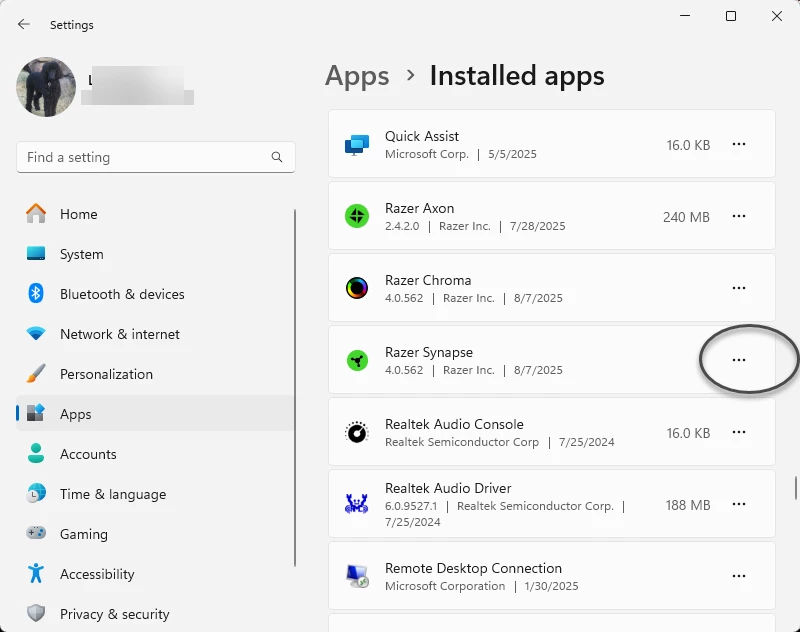
By “Repair” they must mean in Windows Apps.  To be clear that’s what I did.  I went into Installed Apps and clicked on the … , then “modify”, and then “repair”.  After that process it all began behaving normally.  I hope this helps.


WASD works again, not sure for how long. These steps worked for me.

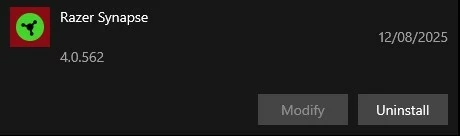
Press uninstall, and confirm. You will get a synapse menu.​​​​
Then Repair. It should call up Synapse 4. Set your 4way Dpad to WASD and it should work.
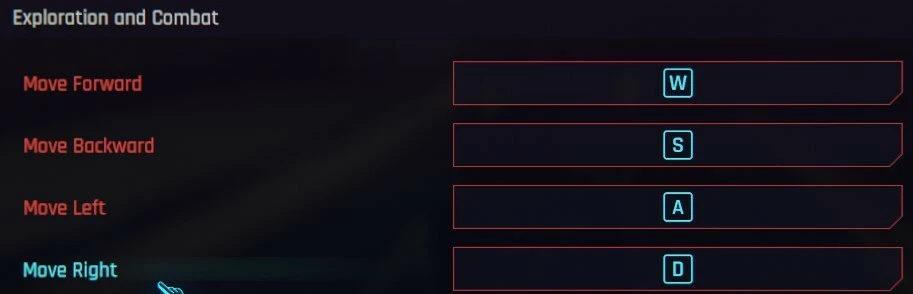
I setup the keys in Cyberpunk 2077 back to WASD and it works. Hopefully it stays. Crossing all fingers.

Note:If the above does not work for you, I just deleted and reinstalled all of my Visual C++ from Microsoft’s website just before repairing Synapse 4. This process takes a couple of restarts.

14.44.35211.0 x64 and x86 (2015, 2017, 2019, and 2022),then restart.

12.0.40664.0 x64 and x86 (2013)

11.0.61030.0 x64 and x86 (2012)

10.0.40219.325 x64 and x86 (2010) then restart.

Do a search(Duckduckgo) for  Visual C++ Redistributable. I’ll put link in chat but razer might have issues.

https://learn.microsoft.com/en-us/cpp/windows/latest-supported-vc-redist?view=msvc-170


As of yesterday evening, my D-pad was working as I wanted it to. It seems to be fixed for now.


Thank you Razer for fixing the issue that affected my gameplay.

While I hope for fewer bumps like this, I understand software development isn’t easy.


I have the same problem but not with any Windows update (I am on Windows 10), only with the update to Synapse.

The only solution I found was to switch to the 8-way setting, disable the corners, and map my previous 4-way functions to the same slots in the 8-way.

I absolutely DESPISE that I cannot disable automatic updates, and that I cannot rollback/install to a previous version.

By going the “Uninstall” → “Repair” route, my setup has returned to normal functionality (but I can only speak for being on Windows 10, not sure if that would fix it if in Windows 11).


  • Insider Mini
  • August 14, 2025

Confirmed to be fixed. 

After the thumbstick stopped working, uninstalled Synapse 4 and installed Synapse 3 as recommended here. Thumbstick worked as before. 

After reading recent posts here, uninstalled Synapse 3 yesterday and reinstalled Synapse 4. 

Thumbstick is working as before and mappings are working correctly. 


countysoloAquamarine199

I have the opposite issue. Only the joystick works and the keys dont work at all


  • Insider Mini
  • October 31, 2025

I have the opposite issue. Only the joystick works and the keys dont work at all

I’ve had this problem before too. It’s a driver issue.
I uninstalled all Razer drivers from the Windows Device Manager, then uninstalled Razer Synapse and reinstalled everything.


  • Insider Mini
  • December 10, 2025

Weird that this thread started 4 months ago, but I didn’t have this issue until sometime within the last 2 weeks.

In my case, the thumb stick functions are rotated exactly 90 degrees counter clockwise (L=U, U=R, R=D, D=L).  So my solution for now is to simply remap my 4 thumbstick directions to match its effective function.