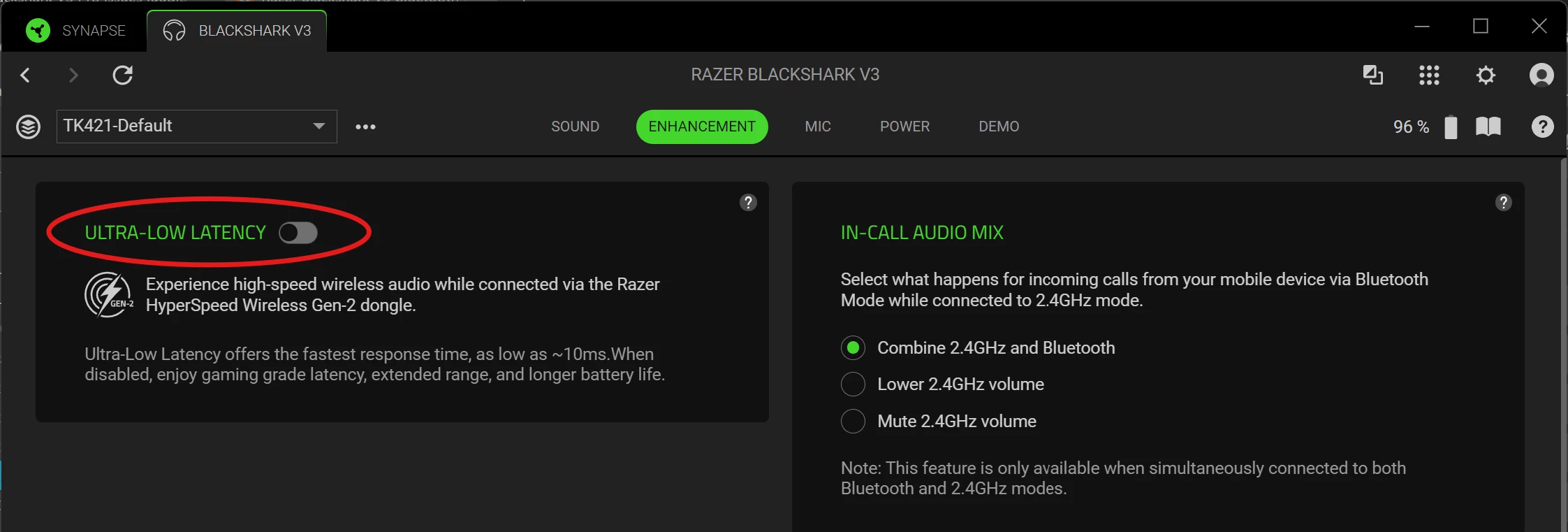
I just got this new headset for the specific use of using 2 PCs at once - taking VoIP calls over Bluetooth on my work PC while listening to music or taking a VoIP call on my personal PC with the 2.4GHz dongle.
I am NOT using the mic for both. I have a wired mic for my work PC and am only using the BT to hear the softphone ring, and to hear the calls. I do intend to use the headset mic on my personal PC.
The BT mode works just fine in standalone mode. However, in simultaneous mode (the entire reason I shelled out money for this headset) the Bluetooth audio is choppy and awful and constantly dropping out, sometimes rapidly so it sounds like static, and sometimes just silence for several seconds in a row. No matter what, it’s never smooth for more than 2-3 seconds, and even that’s rare.
Yes, I have updated all firmware for all things involved. Fully updated all the firmware and BT drivers on the PC I’m using for BT, and checked the firmware on the dongle and the headset (both had no updates when I installed the updater).
First impressions are that this thing is terrible and fully doesn’t deliver on its promised features, and I keep wanting to find the magic thing that says I’m wrong. Please help!