
- Connect it directly with the USB cable - the mosue was still not working properly and it was constantly disconnecting and reconnecting, working for less than a second between each disconnection/reconnection so I couldn't reach anything on the screen.
- Use it via BT on my work laptop (it was already paired before the issue started) and it didn't work on the laptop via BT as well.
- Updated Synapse didn't help.
- Uninstall and reinstall Synapse didn't help.
- Uninstall the device from the device manager, restarted the PC for it to automatically install the device and it also didn't help.
- My firmware is up to date (v2.03.00_r1) so I didn't had to try to update the firmware.

Deathadder V2 Pro Connectivity Issue Via Dongle/BT/Cable
Evening lads and gals,
Earlier today my mouse was working fine via the dongle (connected to the USB port on the charging dock), when I came back home few hours ago it wasn't working fine at all and all of a sudden it started freezing after I moved it for a certain distance (repeatedly), clicks and scrolls didn't register immediately and would have taken several attempts until they would register.
I've already tried the following:

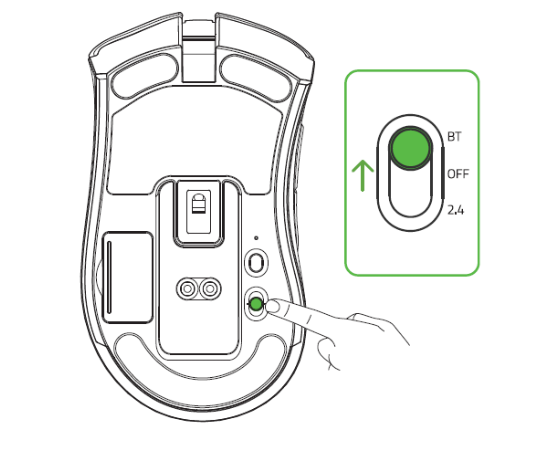 Select BT mode
If it’s set to either 2.4 or OFF, it won’t be able to pair with Bluetooth.
Bluetooth Pairing
If you’ve removed the mouse from your Bluetooth devices on your PC, the mouse could still be in a mode where it ‘thinks’ it’s still connected. If this is the case it won’t broadcast messages.
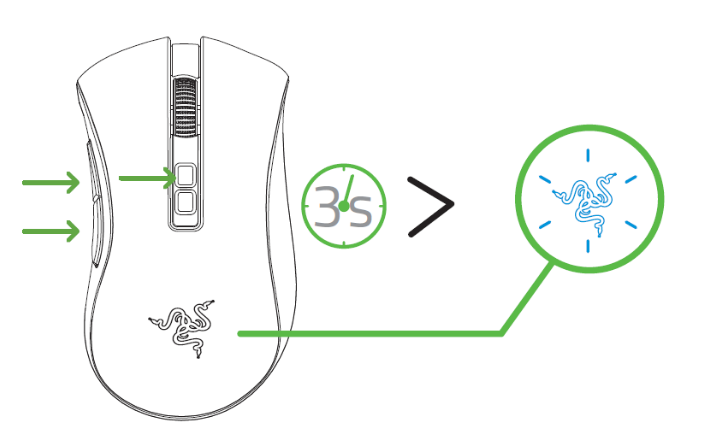
Press and hold both side buttons and dpi-up button at the same time for three seconds to put the device in pairing mode. The logo should blink twice in repeated intervals to indicate that it is in pairing mode.
Your PC should now be able to see the mouse again for re-pairing when you search for it.
Select BT mode
If it’s set to either 2.4 or OFF, it won’t be able to pair with Bluetooth.
Bluetooth Pairing
If you’ve removed the mouse from your Bluetooth devices on your PC, the mouse could still be in a mode where it ‘thinks’ it’s still connected. If this is the case it won’t broadcast messages.
Press and hold both side buttons and dpi-up button at the same time for three seconds to put the device in pairing mode. The logo should blink twice in repeated intervals to indicate that it is in pairing mode.
Your PC should now be able to see the mouse again for re-pairing when you search for it.
 When the mouse has paired, the Razer logo will briefly turn solid blue before displaying its lighting effect.
Bluetooth connectivity is limited to 30 feet. However in practice, depending on other wireless devices nearby, the range can be limited to less than that. To ensure better signal quality, move the mouse closer to your PC.
If you encounter issues with Bluetooth pairing, try pairing with another Bluetooth device such as an external speaker. If it doesn’t work then there’s likely an issue with Bluetooth on your PC.
Try Another Computer
To rule out Bluetooth issues with your PC try pairing the mouse with another PC or Mac. If it works, then it’s most likely an issue with your PC.
Some common things to check for:
When the mouse has paired, the Razer logo will briefly turn solid blue before displaying its lighting effect.
Bluetooth connectivity is limited to 30 feet. However in practice, depending on other wireless devices nearby, the range can be limited to less than that. To ensure better signal quality, move the mouse closer to your PC.
If you encounter issues with Bluetooth pairing, try pairing with another Bluetooth device such as an external speaker. If it doesn’t work then there’s likely an issue with Bluetooth on your PC.
Try Another Computer
To rule out Bluetooth issues with your PC try pairing the mouse with another PC or Mac. If it works, then it’s most likely an issue with your PC.
Some common things to check for:
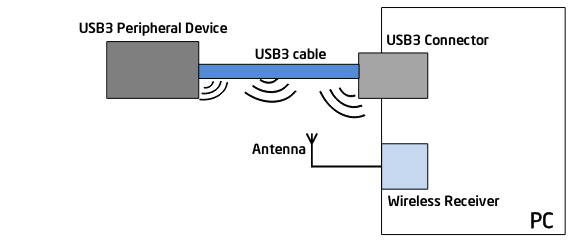 USB3 peripheral connected to USB3 interface connector on PC (Image credit: Intel)
Pause the use of the USB 3 device and see if it improves the quality of your Bluetooth connection. As well, move wireless routers, phones and other wireless devices away from your mouse.
If the connection is more stable, then the problem was definitely due to interference. The only way to solve this permanently is to be mindful of other wireless devices nearby.
Final suggestions
If you have tried all the suggestions in our post and none of them worked, it might be worthwhile to contact support at Razer. If your mouse is still under warranty you can ask to RMA it.
USB3 peripheral connected to USB3 interface connector on PC (Image credit: Intel)
Pause the use of the USB 3 device and see if it improves the quality of your Bluetooth connection. As well, move wireless routers, phones and other wireless devices away from your mouse.
If the connection is more stable, then the problem was definitely due to interference. The only way to solve this permanently is to be mindful of other wireless devices nearby.
Final suggestions
If you have tried all the suggestions in our post and none of them worked, it might be worthwhile to contact support at Razer. If your mouse is still under warranty you can ask to RMA it.




Sign up
Already have an account? Login
Log in with Razer ID to create new threads and earn badges.
LOG INEnter your E-mail address. We'll send you an e-mail with instructions to reset your password.