If you have problems:
- BSOD randomly due to kernel level issues.
- Any browser web pages crashing with SYSTEM_ACCESS_VIOLATION error.
- Any programs (especially games) may be random crashed without a specific reason.
And also:
- Laptop with intel cpu 13th or 14th gen.
- Any updates for system / firmware / drivers / programs - not solved issue.
- System tools dism / sfc / chkdsk and RAM memory scans - not found any problem.
Then most likely next actions will help you fix these problems.
TL;DR:
- Install Intel Extreme Tuning Utility (only Windows 10+).
- Go to "Advanced View", then to "Advanced Tuning".
- Set "Performance Core" values so that the panel on the right displays the values as in the screenshot for the underlined parameters, and click "Apply".
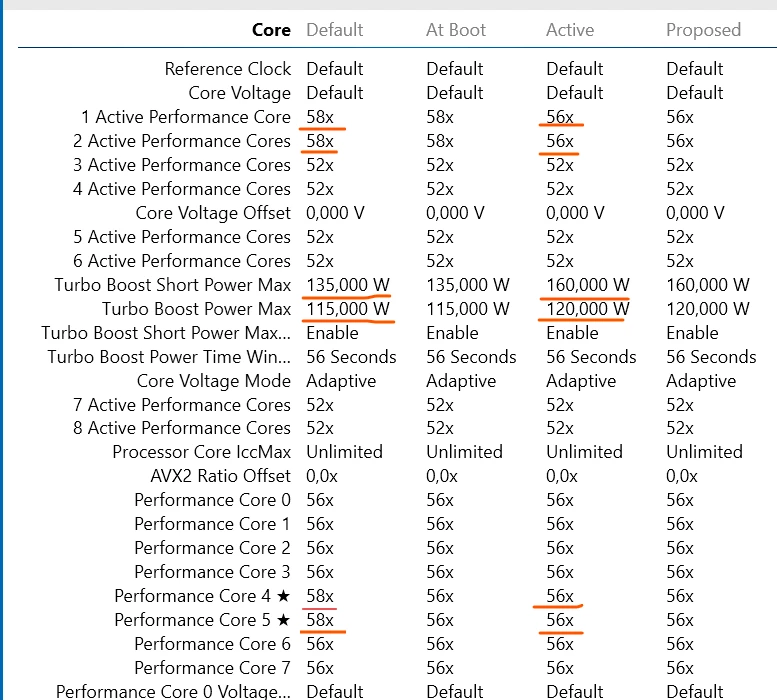
That's all you need to fix it. Don't be afraid to change the values; the new parameter value will be highlighted, letting you know if it's the right one. They won't be applied until you click "Apply." You can also completely undo all changes by returning to "Compact View" (bottom left) and clicking "Revert."
Below is a more detailed description.
- You should restore the "Performance Core" values every time after reboot and after return from Hibernation (not Sleep). You should restore the "Turbo Boost Power Max" values after connecting the charger, in case laptop work is unstable without reducing them. These values need to be restored because they are overwritten during these events.
- You don't need to manually set all the parameters each time. They are set once, then can be saved as a profile in the "Profiles" tab. Subsequent settings are applied in a couple of clicks thanks to the saved profile.
- The parameters values are most likely restored by the Razer drivers installed in the system. These drivers also control switching between balanced/turbo modes in Synapse. However, switching modes doesn't change the values themselves, but has a different effect. You can see the difference in performance between the modes by running a test in the "Benchmarking" tab for different modes.
- I have a Razer Blade 16 (2024). When BIOS was version 1.03 for stable laptop works it was necessary to additionally reduce the "Turbo Boost Power Max" to defaults 115w and 135w. After BIOS updated to version 1.08 I left the parameters at 120W and 160W and each time changing only "Performance Core" values. In despite of scans of P-cores in OCCT found errors a couple of times that consistently don't occur with 115W and 135W, the laptop works stably and there are no the problems.
- Update BIOS to 1.08 updated the CPU microcode 0x120 => 0x132. This stabilized the CPU power management to some extent, which was noticeable in the temperature graph under load. However, it doesn't fixed the problems. Therefore, lowering the "Performance Core" values is still required for stable works. And if you forget to do this, a browser tab crash will remind you.
Some vendors make changing these parameters much easier due to their advanced BIOS (UEFI) settings editor. Their users only need to change these settings once in BIOS. Razer laptops don't have these settings in BIOS for "Performance Core" parameters. So, you have to resort to these hacks. But at least it works.
Here are some threads where you can read more about the manifestations of this problem and attempts to solve it:
- https://www.reddit.com/r/techsupport/comments/1k4jp5a/comment/moyhj2y/
- https://www.reddit.com/r/chrome/comments/1q1u6vf/chrome_aw_snap_status_access_violation_crashes/
- https://www.reddit.com/r/chrome/comments/1cy9twz/comment/ll79bf1/
- https://community.intel.com/t5/Mobile-and-Desktop-Processors/Solved-Stability-issue-with-proc-I9-14900K-crash-BSOD/m-p/1648486#M79267
There are cases that describe a problem with a specific CPU core. Perhaps this case can be solved using the method I described in this thread. However, this case can be used as an example of how to find the problematic core. Details: https://community.intel.com/t5/Mobile-and-Desktop-Processors/browser-occasionally-displays-a-status-access-violation-error/td-p/1457802
And then using Process Lasso or Task Manager you can configure which cores can be used by the running process. This will eliminate the problematic core and stabilize works. Details: https://windowsforum.com/threads/how-to-permanently-set-cpu-affinity-in-windows-11-10-for-optimal-performance.369250/
Overall, this is a problem on the Intel CPU side that will not be resolved, and all that remains is to adjust the configuration to stabilize work. Details: https://community.intel.com/t5/Blogs/Tech-Innovation/Client/Intel-Core-13th-and-14th-Gen-Desktop-Instability-Root-Cause/post/1745963#M163