

Razer Synapse for Mac Guide and FAQ | Razer Insider
Skip to main content

Razer Synapse for Mac Guide and FAQ

  • May 8, 2025
  • 13 replies
  • 2860 views

dekades

Getting Started 


Installation Guide 

Maximize your unfair advantage with the Razer Synapse for Mac Preview App, the unified cloud-based hardware configuration tool that takes your Razer devices to the next level.  

Refer to these steps on how to install the Razer Synapse for Mac Preview App.

Check out this guide on how to uninstall the Razer Synapse for Mac Preview App.


Full Technical Specifications 

Supported Operating System: macOS 13 and above, on Apple silicon based Mac 

Languages: English, German, Spanish, French, Japanese, Korean, Portuguese, Russian, Chinese Simplified, Chinese Traditional 

Supported Component: Device Configurator 

Supported Devices: The Razer Synapse for Mac Preview Supported Devices 

Frequently Asked Questions

 You can also find the FAQ on the official Razer support site.

How do I create a Razer Synapse account? 

  • Go to Razer ID log in page. 
  • Click "REGISTER A NEW ACCOUNT" to register for a Razer ID. 

How do I update the Razer Synapse for Mac Preview? 

  • Launch the Razer Synapse for Mac Preview App. 
  • If there is an update available an icon will appear letting you know a newer version of the Razer Synapse for Mac Preview is available to download. 
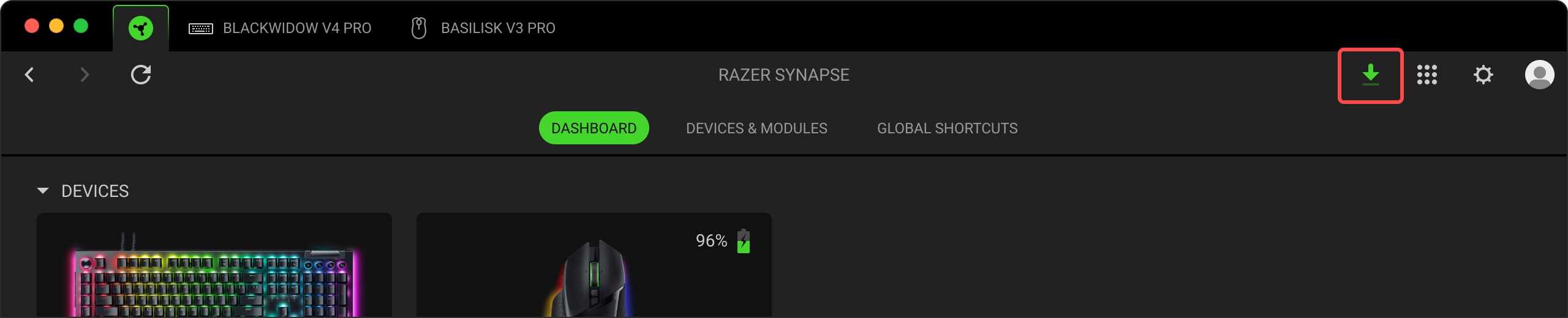
     
  • Follow the instructions on screen to complete the update. 


How do I remap keys or buttons on a Razer keyboard, or mouse? 

  • Open the Razer Synapse for Mac Preview. 


  • Select the device you want to customize under "DEVICES." 
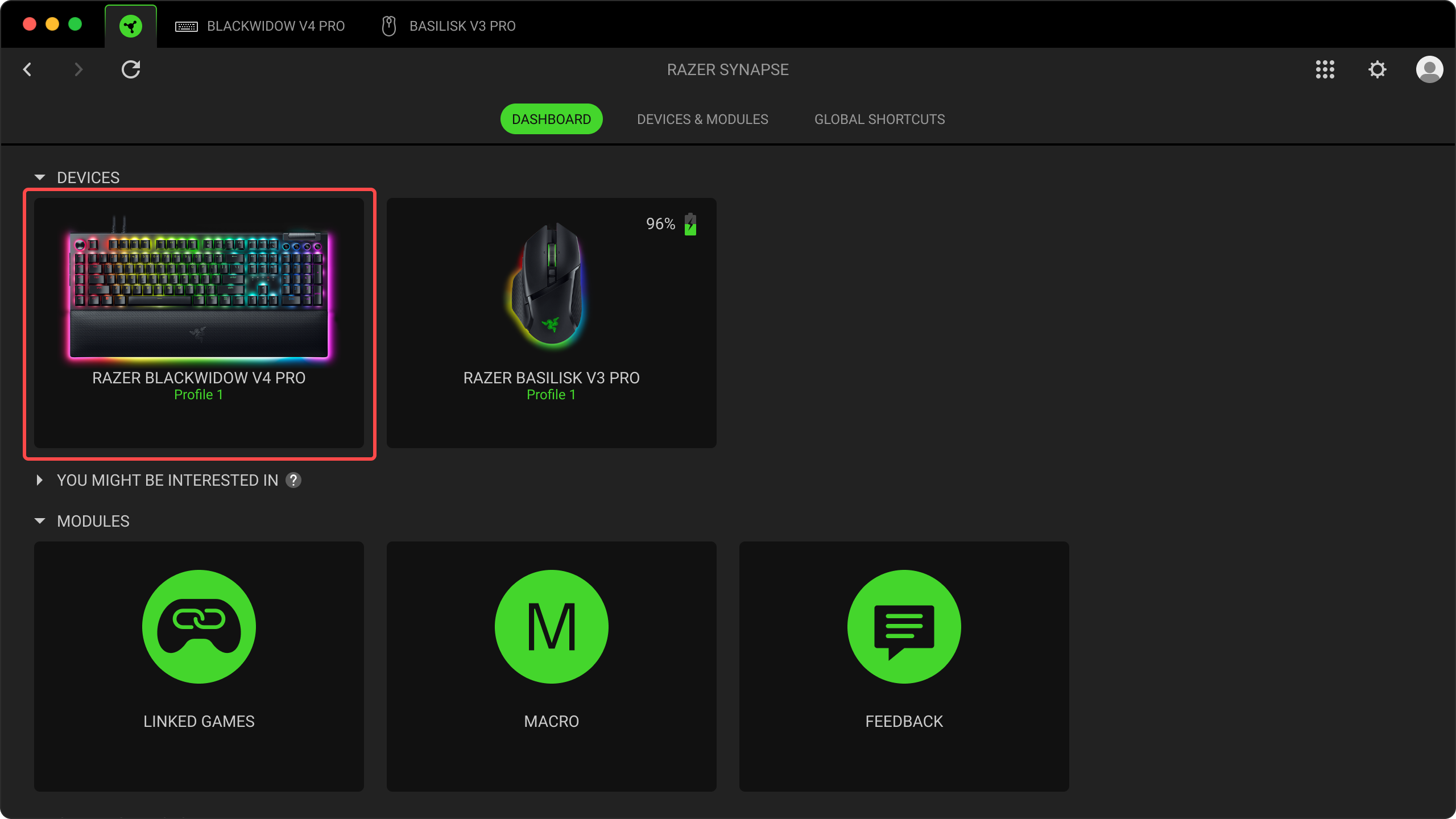


  • Select the key or button you want to modify. 
     
  • Select your preferred function such as Keyboard Function, Mouse Function, Macro, Inter-Device, and more. 


  • Click "Save." 


How do I use the Surface Calibration feature in the Razer Synapse for Mac Preview? 

  • Ensure that your mouse is supported by the Razer Synapse for Mac Preview. 
  • Open the Razer Synapse for Mac Preview. 
  • Select the mouse you want to calibrate. 
     
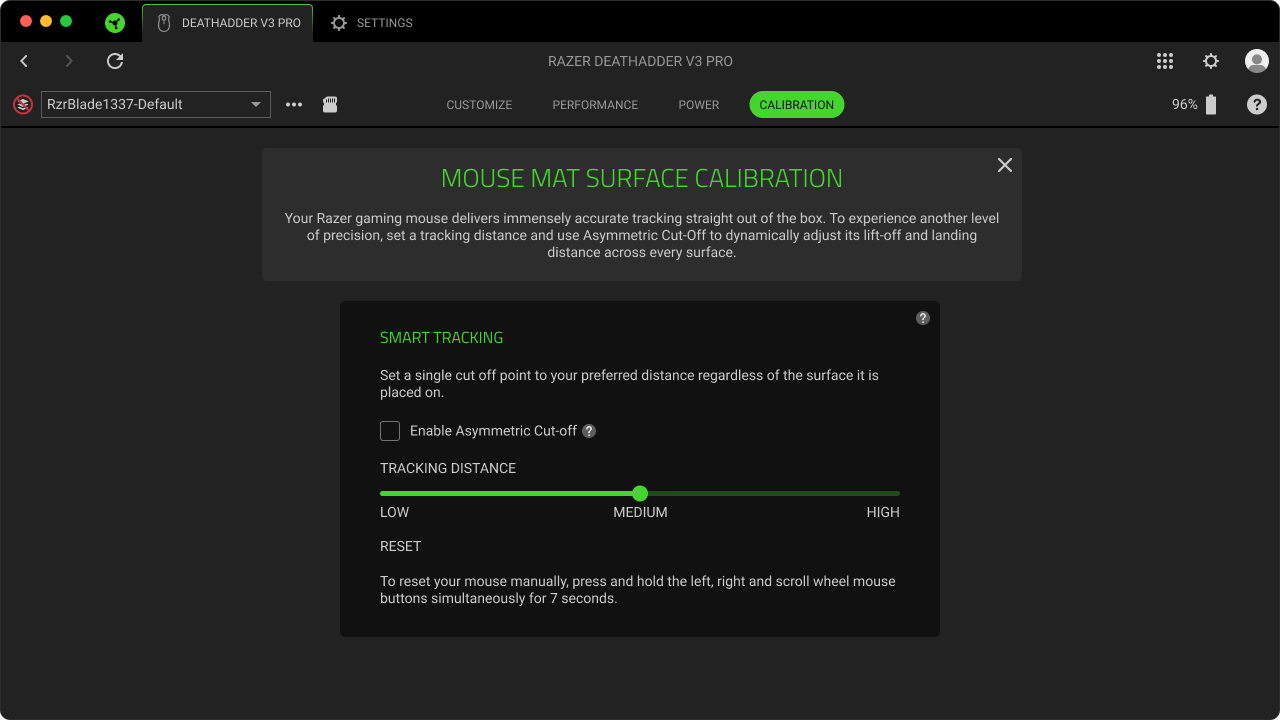
  • Click on "CALIBRATION." 
     
  • Adjust the surface calibration by dragging the slider to set the desired TRACKING DISTANCE. The options are LOW, MEDIUM, and HIGH.


  • Additionally, you can check “Enable Asymmetric Cut-off” to dynamically adjust both the LIFT-OFF DISTANCE and LANDING DISTANCE across every surface.
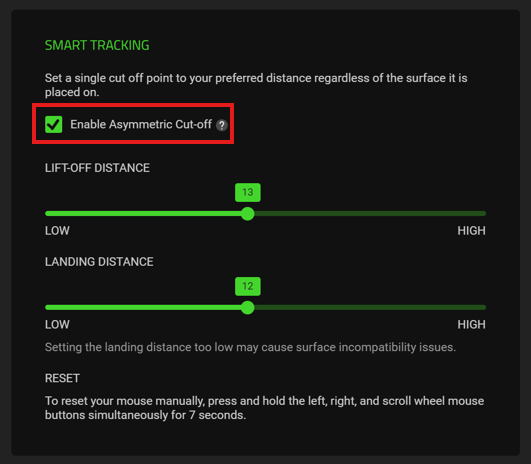
     

  • Your mouse will apply your calibration settings immediately.

  • After recalibration, test your mouse to ensure it is functioning correctly.

How to adjust the DPI setting on a Razer mouse through the Razer Synapse for Mac Preview? 

There are two ways to configure the DPI sensitivity level of your Razer mouse. 

Sensitivity Stages: 

  • Open the Razer Synapse for Mac Preview and click on your Razer mouse that you want to configure. 
  • Go to the "PERFORMANCE" tab. 
  • Toggle "Sensitivity Stages" on. 
  • Select the stage you want to edit. 
  • Key in the specific DPI value you want to apply. 

Sensitivity Sliders: 

  • Open the Razer Synapse for Mac Preview and click on your Razer mouse that you want to configure. 
  • Go to the "PERFORMANCE" tab. 
  • Toggle "Sensitivity Stages" on. 
  • Move each slider to reach your preferred DPI levels. 

Macro How do I create macros on the Razer Synapse for Mac Preview? 

  • Plug a product supported by the Razer Synapse for Mac Preview into your computer. 
  • Open the Razer Synapse for Mac Preview. 
  • Click the “More” button and select “Macro”  
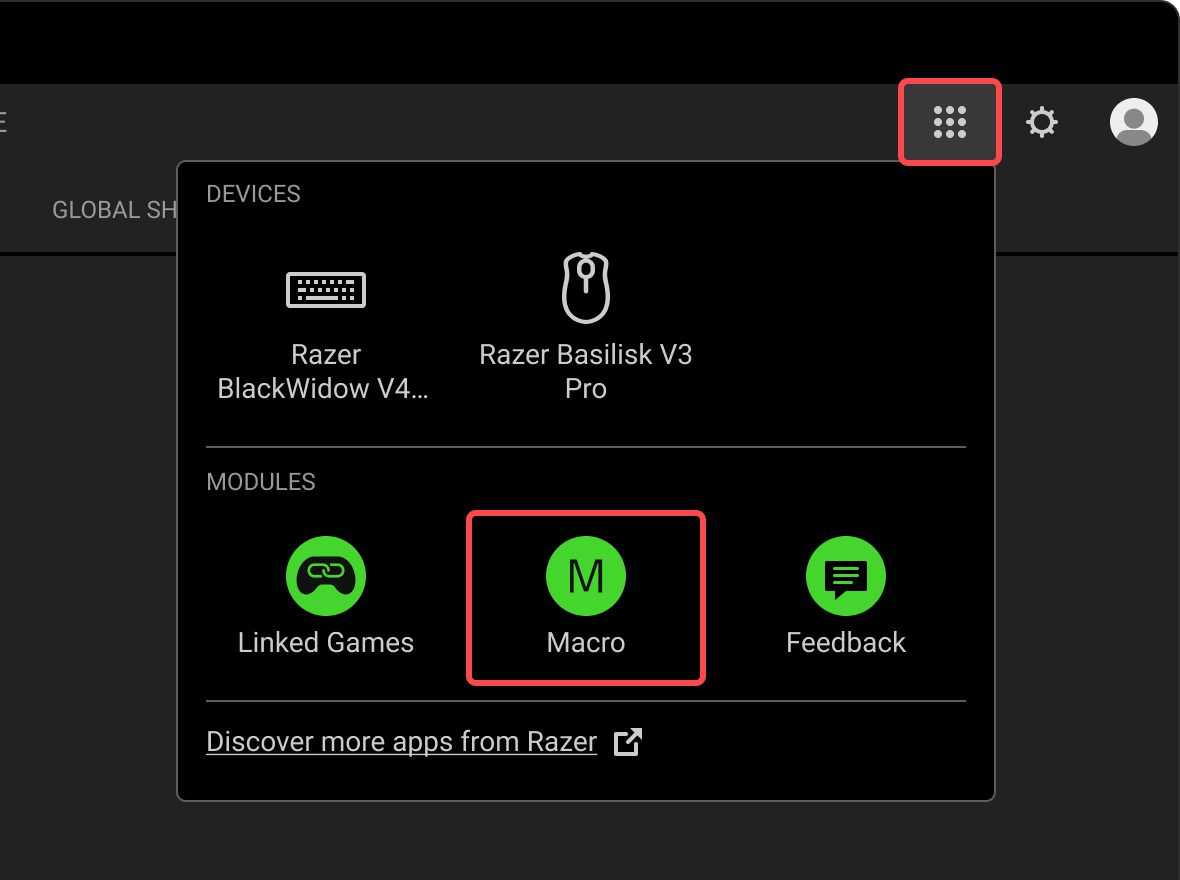
     
  • Click on "New Macro." 
  • Select a macro to start adding input sequences. 

There are two ways to create a macro: 

  • Record – record your keystrokes or mouse functions which will be added to the macro. 
  • Drag & Drop – manually drag and drop keystrokes or mouse functions to the macro. 

Record 

  • Click on "RECORD" when you are ready to record your macro. 
  • Click "STOP" after you finished recording your macro. 
  • Click on "SAVE" to save the recorded macro. 

Drag & Drop 

  • Select the keystroke or mouse function that is desired. 
  • Drag across from the ADD panel to the Recording panel to add the keystroke or mouse function to the macro. 
  • Click on "SAVE" to save the macro. 

How do I delete macros on the Razer Synapse for Mac Preview? 

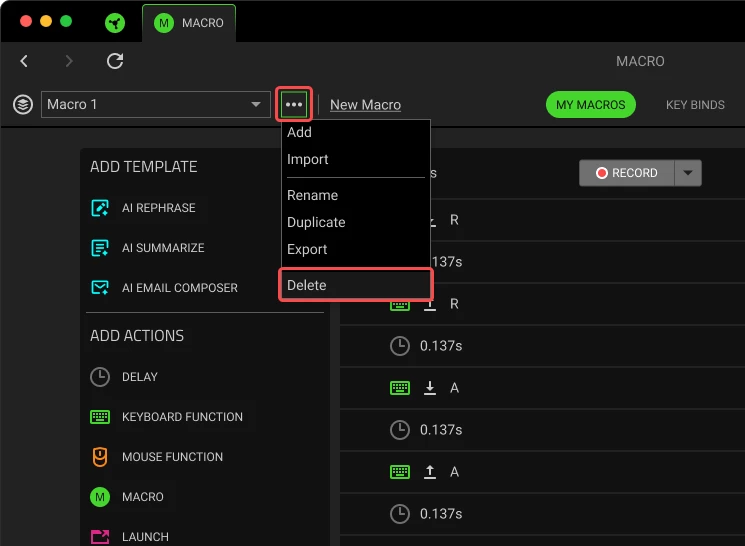
  • Click on the ellipsis button beside the macro dropdown. 
  • Select "Delete."
     
  • Click "Delete." 


General Information  

Can both Synapse 2 for Mac and the new Razer Synapse for Mac Preview run concurrently? 

It is not recommended to run both versions of Synapse for Mac concurrently. Use the new Razer Synapse for Mac if your Razer device is supported.  


Where can I find out on what features are unavailable in the Razer Synapse for Mac Preview? 

You can proceed to Razer Insider Razer Synapse for Mac sub-forum for a summary of the current feature set. 

Will all the devices currently supported in Razer Synapse for Windows be supported in the Razer Synapse for Mac Preview? 

Currently only a selective subset of Razer devices are supported in Razer Synapse for Mac Preview. We will keep adding new devices support going forward. For latest supported devices, you can watch and refer to The Razer Synapse for Mac Preview Supported Devices

Can the Razer Synapse for Mac Preview support multiple Razer devices at the same time? 

Yes. The Razer Synapse for Mac Preview can support multiple devices at the same time. 

13 Replies

Is there an option to hide the dock icon? The menu bar icon is enough, and it’s already allowed to run in the background, so it would be great if we could hide the dock icon and salvage that wasted space. Thanks!


Will the list of supported devices increase at some stage? 


  • Insider Mini
  • June 27, 2025

Why isn’t the Razer Basilisk Mobile supported on Razer Synapse 4 for Mac? It just the newest mouse...


Why isn’t the Razer Basilisk Mobile supported on Razer Synapse 4 for Mac? It just the newest mouse...


Indeed, I too am waiting for the support of Basilisk mobile to buy it the day it works!


I would like to avoid switching back and forth scroll mode when the display is on with the option "switch off lighting when display is turned off"

Clicks when display is on


Also would like to be able to save default profile settings within the hardware that are applied when Razer Synapse is not running


  • Insider Mini
  • November 26, 2025

For the love of all that is holy, please hurry up with headphone support for Mac! I know they aren’t traditional gaming machines, but I use the Razer headset for work meetings as I need good audio and I need comfort because I wear them for long periods.


Still no headphone Support. Thank you Razer.


Is there an option to hide the dock icon? The menu bar icon is enough, and it’s already allowed to run in the background, so it would be great if we could hide the dock icon and salvage that wasted space. Thanks!

Did you found solution? I just got pro click v2 and consider to return it back to seller because of software  


  • Insider Mini
  • December 9, 2025

Is there an option to hide the dock icon? The menu bar icon is enough, and it’s already allowed to run in the background, so it would be great if we could hide the dock icon and salvage that wasted space. Thanks!

6 month and nothing has happend. I hate this wasted space


  • Insider Mini
  • January 5, 2026

Please add support for the Razer Viper Ultimate.


  • Insider Mini
  • February 7, 2026

I get the feeling that there are only one or two guys involved in Synapse 4 development.  A company the size of Razer should be able to apply whatever resources are necessary to work on THE ONE application that EVERY device needs to use.   The absolutely glacial pace at which they provide support for existing devices is atrocious.  I see there’s a Beta for Synapse 4 going on at the same time, so it’s obvious some effort is being applied, but even that development is horribly slow for a company of Razer’s size and reputation.  

The reputation they are building now is that they only provide minimal support and the support they do provide is inadequate.   Someone somewhere needs to take another look at the company’s priorities.


  • Insider Mini
  • February 15, 2026

Hi and thank for this thorough article.

Here is one think I just can’t manage to work. My previous vertical mouse had same two buttons for a thumb and they were easily programmable for Trackpad gestures, since we are on macOS.

Tried both standard mouse buttons and gestures - zero effect.

Then tried Recording - simple does not see anything coming from trackpad.

Buttons were so useful for switching between full screen apps / swiping between spaces.

It’s a deal breaker, please let me know if there is a workaround!


Dear Razer Support and Development Team,

I am a full-stack engineer using the new Razer Pro Type Ergo (RZ03-0544) on macOS via Bluetooth. It is an incredible hardware design, especially the 3-split spacebar. However, there is a critical software limitation in Razer Synapse for Mac users in Japan that significantly hinders productivity.

【Feature Request】

Please add native "Japanese_Eisuu" (英数) and "Japanese_Kana" (かな) to the key assignment (Keyboard Function) list.

【Why this is necessary】

Many software engineers and creators in Japan who use ANSI (US) layouts prefer to map the Left Split-Spacebar to "Eisuu" (force English input) and the Right Split-Spacebar to "Kana" (force Japanese input). This is a standard practice for maximized typing efficiency.

Other major keyboard software (such as Logitech's Logi Options+ or QMK/VIA tools) natively support these two Mac-specific keycodes.

【Current Issues & Bugs with Workarounds】

Currently, I am forced to use workarounds, but they all cause severe bugs:

  1. Conflict with Karabiner-Elements: If I use third-party remapping software like Karabiner to map Eisuu/Kana, it conflicts with Razer Synapse's input monitoring. As a result, the keyboard's key features—such as the Command Dial, media rollers, and Macro keys—stop working entirely.

  2. Input Glitch / Race Condition with Macros (Control + Space): If I create a Synapse Macro to trigger the macOS input shortcut (e.g., Ctrl + Space), a critical timing bug occurs. When I type at high speeds and press Shift immediately after hitting the split-spacebar (such as typing _ or capital letters like agent_), the input mode glitches. The OS fails to register the key release (Up signal) in time, causing the input mode to toggle back or produce full-width Zenkaku characters incorrectly.

【Conclusion】

The Pro Type Ergo is designed to improve ergonomics and productivity, but the lack of native macOS Japanese keycodes undermines its potential for Japanese professionals.

Adding native "Japanese Eisuu" and "Japanese Kana" keycodes to Synapse would completely resolve these conflicts and timing bugs, unlocking the true potential of this flagship keyboard.

Thank you for your time and for considering this feedback. I look forward to seeing this implemented in a future Synapse update.

Best regards,